

After GDN, Facebook, and Zalo channels, MGID is an advertising channel that brings huge traffic. But because it’s so terrible, you will easily burn your budget if you don’t measure MGID conversions but convert not much. The conversion price is high. Now rest assured, this article Lucid Gen will guide you through setting up MGID conversion tracking correctly, test to make sure to jump to MGID.
Efficiency from MGID conversion tracking
- You’ll see which widgets, devices, regions are converting well, not converting, and how the price converts.
- Based on that, you know you should turn off the targets to save costs.
- Focus on high conversion targets to optimize, increase orders and sales.
How to track MGID conversion with code
Steps to track MGID conversion
Bước 1: Add MGID conversion tracking code to website.
Step 2: Add a conversion goal for the MGID.
Step 3: Test conversion data sent to MGID.
Add MGID conversion tracking code to website
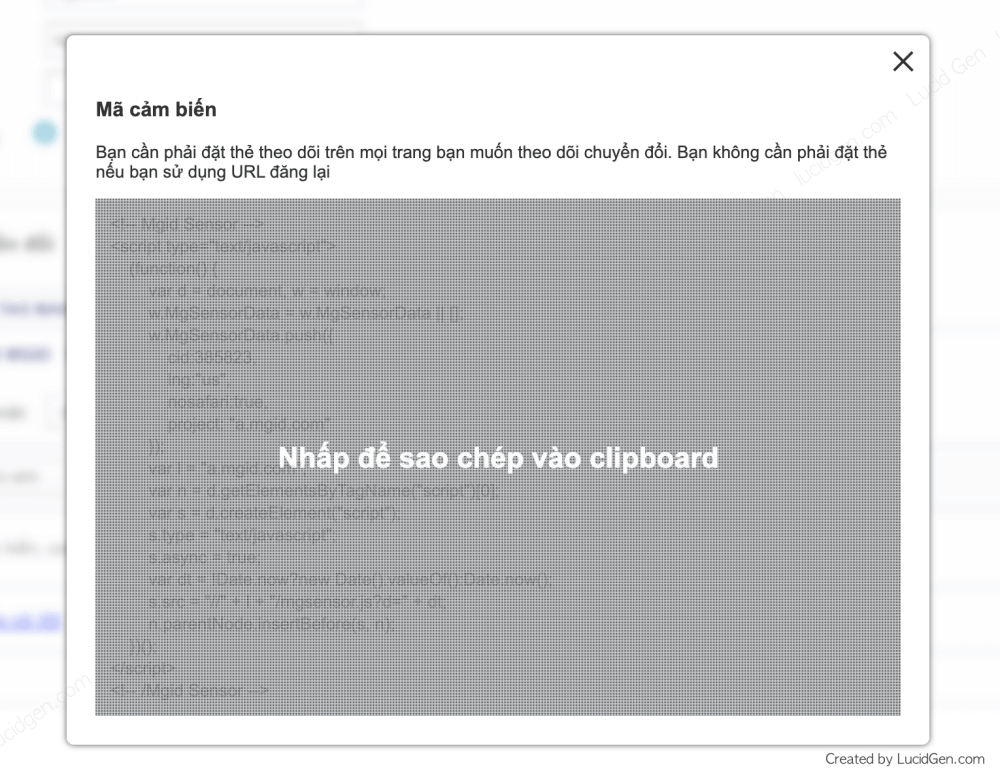
You go to the settings of the MGID campaign, turn on the MGID conversion and then click Get tracking code to get the code.

Click on the box containing the tracking code to copy it automatically.
Insert the code into Ladipage
In the Ladipage builder, click Settings > Javascript/CSS Code, then insert the code in the box Before the </head> tag and save it.
It would help if you did this for all pages involved in the conversion process. For example, ad landing page, thank you page when a customer completes an order.
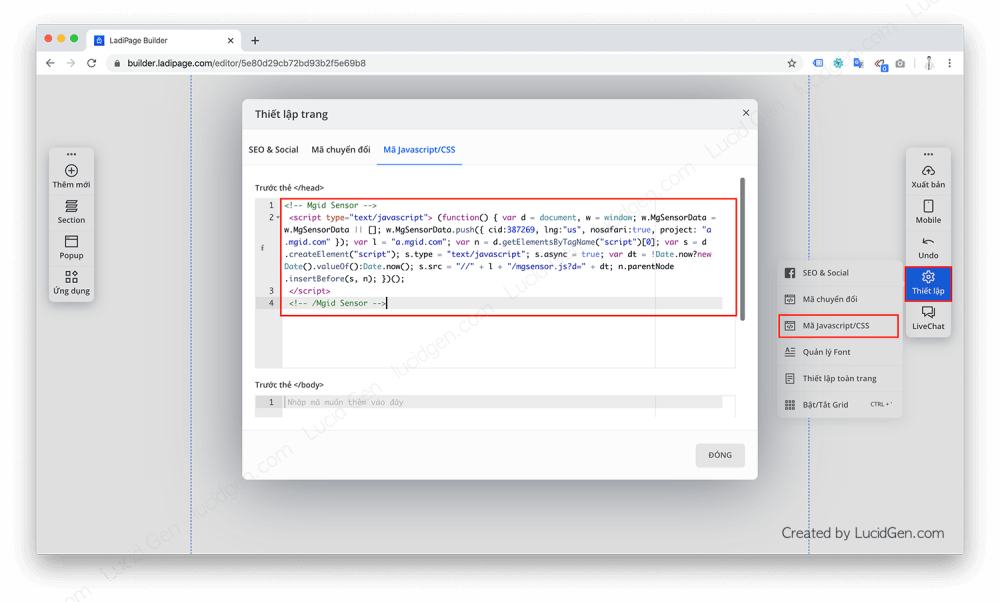
It would help if you published the thank you page first, then go to the ad landing page, edit the form settings to switch back to the published thank you page URL when the customer successfully places a purchase.

Insert code into WordPress
For WordPress, you need to install the Insert Headers and Footers plugin to insert any code.
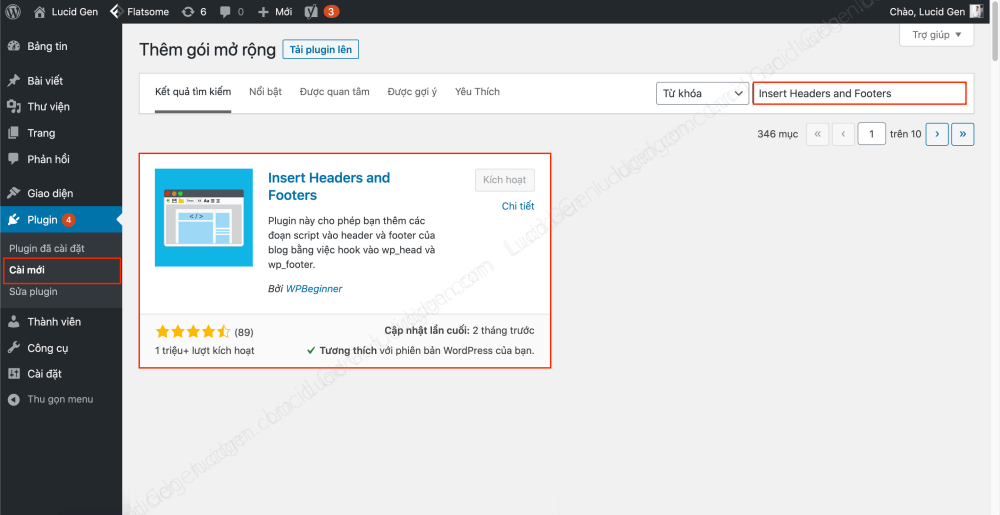
Then go to Settings > Insert Headers and Footers and paste the code in the Header box, then click the save button below.

Add Conversion Goal for MGID
Back to the original code in MGID, set the target as shown below. You can change your Sale part to another action like Lead; for example, it’s up to you. For the next part, you should leave the URL Contains and then paste the end of the thank you page into. Remember to click save.

How to track MGID conversion with Google Tag Manager
If you have added Tag Manager to your website, you can use Tag Manager to measure MGID conversion tracking. If you have not used it, you can see how to insert Tag Manager into the web.
Steps to track MGID conversions with Tag Manager:
Step 1: Get the ID number of the MGID account.
Step 2: Create a conversion trigger.
Step 3: Add the MGID tag to Tag Manager.
Step 4: Test to convert the number to MGID.
Get the ID number of the MGID account.
In the MGID conversion tracking settings, click through the Google Tag Manager tab, turn On, and then find your MGID Client ID number.
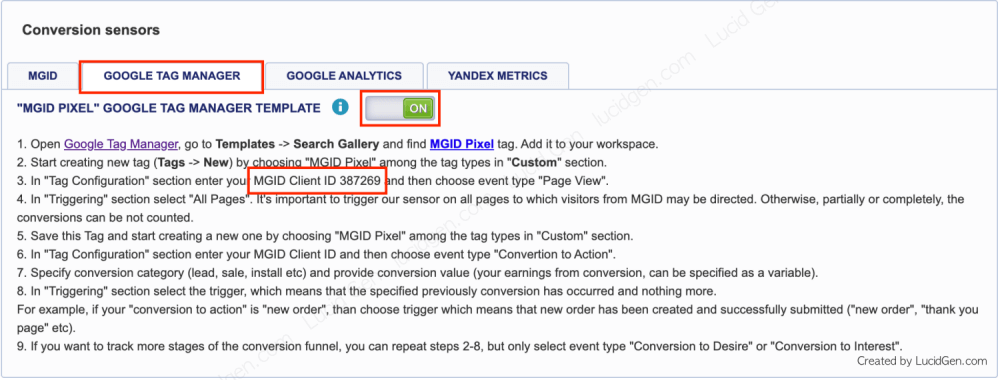
Done leave it; we’ll need to use it later.
Create a conversion trigger.
We’ll create a trigger for a successful purchase conversion. You click on the Trigger and create the following:
- Trigger type: Page View.
- This trigger fires on: Several page views.
- Occurrence condition: Page Path > contains > tail of thank you page URL.
Then click the save button, and you’re done.

Add MGID conversion tag to Tag Manager.
Now we create the MGID tag. You click Cards > Create New > Choose a card type to start setting up…

You click the Explore more tags bar in the Community Template Gallery and then find the MGID and then click MGID Pixel.

You click the Add to workspace button at the top.
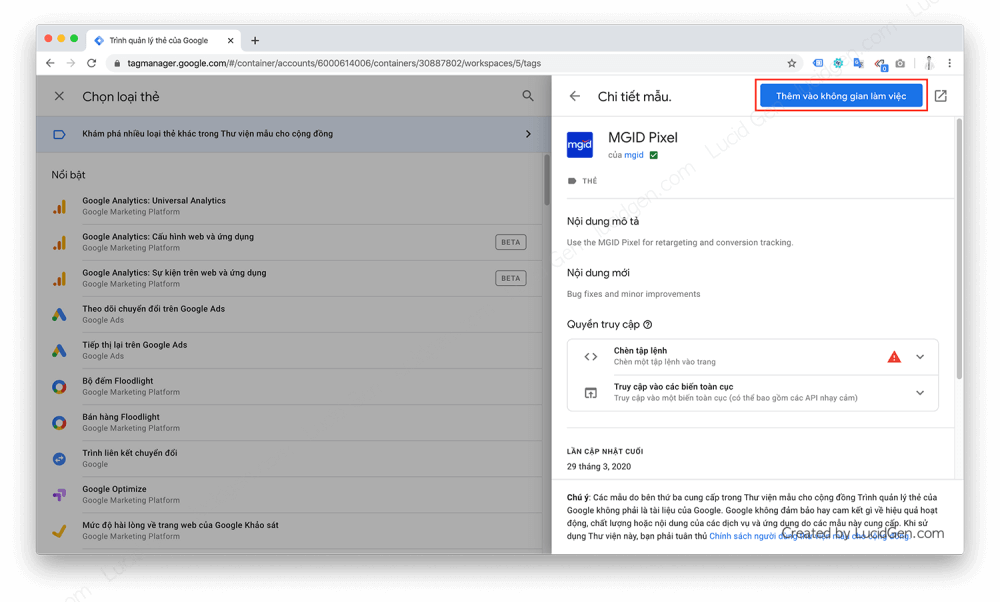
A confirmation window appears; let’s click Add.

Now we will configure the MGID tag for all the pages. You configure the following:
- Tag name: MGID All Pages (or MGID full page, easy to remember).
- MGID Client ID: paste the original ID number we found there.
- Event Type: Page view
- Activate: select All Pages
Then you click save to finish this card.

Next, you do the above operation again to add the MGID tag but configure the tag for the conversion.
- Tag Name: MGID conversion.
- MGID Client ID: paste the ID number found in the above step.
- Event Type: Convertion to Action
- Conversion Category: Sale, Lead, whatever you like.
- Activate: select the Thank You Page we created.
Then you click Save to complete the conversion card. Note: after you’re done, you need to click Send outside of the Workspace.

Test conversion data sent to MGID
To test whether conversions are attributed to the MGID, click on the ad listing and then click the ad’s URL. Make a successful conversion yourself. Then wait about 5 minutes and then re-enter to see if the number in parentheses is jump.
For example, in this figure, 162(1) means 162 real ads from ads and 1 conversion test alone.

After running for a while, you can go to the Widget auction to see which Widget converts well.

Here’s my example. You will know which Widget to leave, which Widget to turn off.
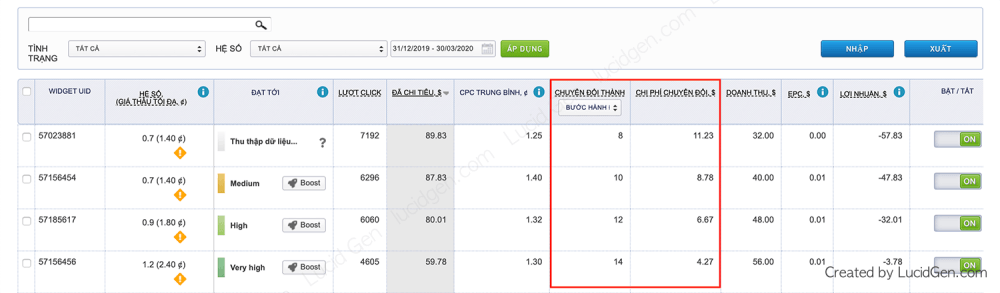
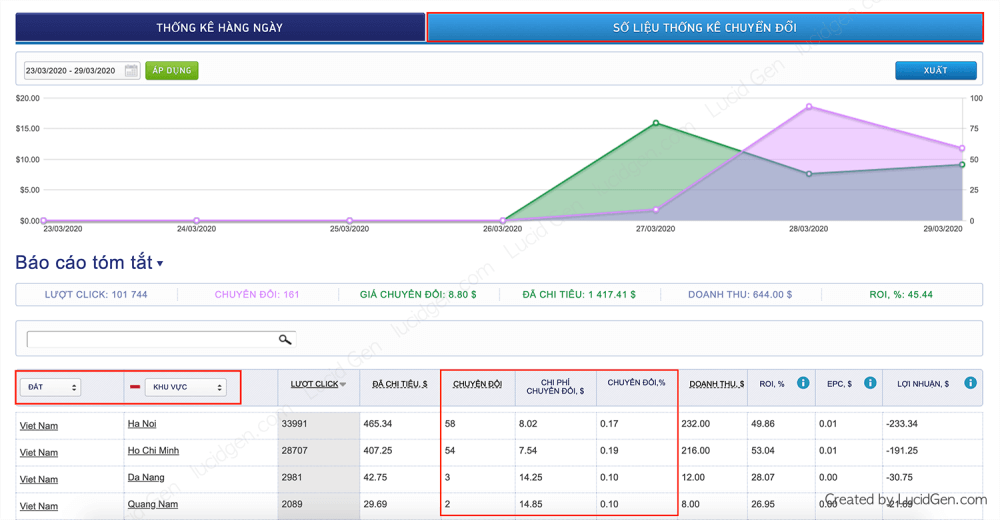
In addition, you can see which areas and devices have good conversions by clicking on the analysis icon like this picture.

You click through the Conversion Stats tab and then set the Country, Region as shown in this picture to see which regions have conversions.
If you want to remove an area, go back to the campaign settings, open the target section to remove it.
Epilogue
Through this article, if you have done it, please leave a comment below to let me know. Thanks to MGID conversion tracking and excluding ineffective targets, you will save a lot of money. Would you mind sharing it with your classmates? Good luck!


