

I first came across QuillBot when it was just a tool for paraphrasing English text. Years later, QuillBot has many more features, and its apps now run on more platforms. So what can QuillBot do today? Let’s find out how to use QuillBot on your phone and computer.
Introduction to QuillBot, an all-in-one writing tool
QuillBot is a versatile AI writing tool that helps you write content, improve sentences, check grammar, and more. Its interface is easy to use, so it suits everyone from students to content creators and businesses.
When to use QuillBot
The right time to use QuillBot is when you already have basic content. QuillBot helps you edit and polish what you have already written. For example, QuillBot Summarizer needs a full piece of content to summarize, and QuillBot Paraphraser needs a passage to rewrite.
If you are starting from scratch and drafting in English, Grammarly is a better fit at this stage.
Pricing and Premium features
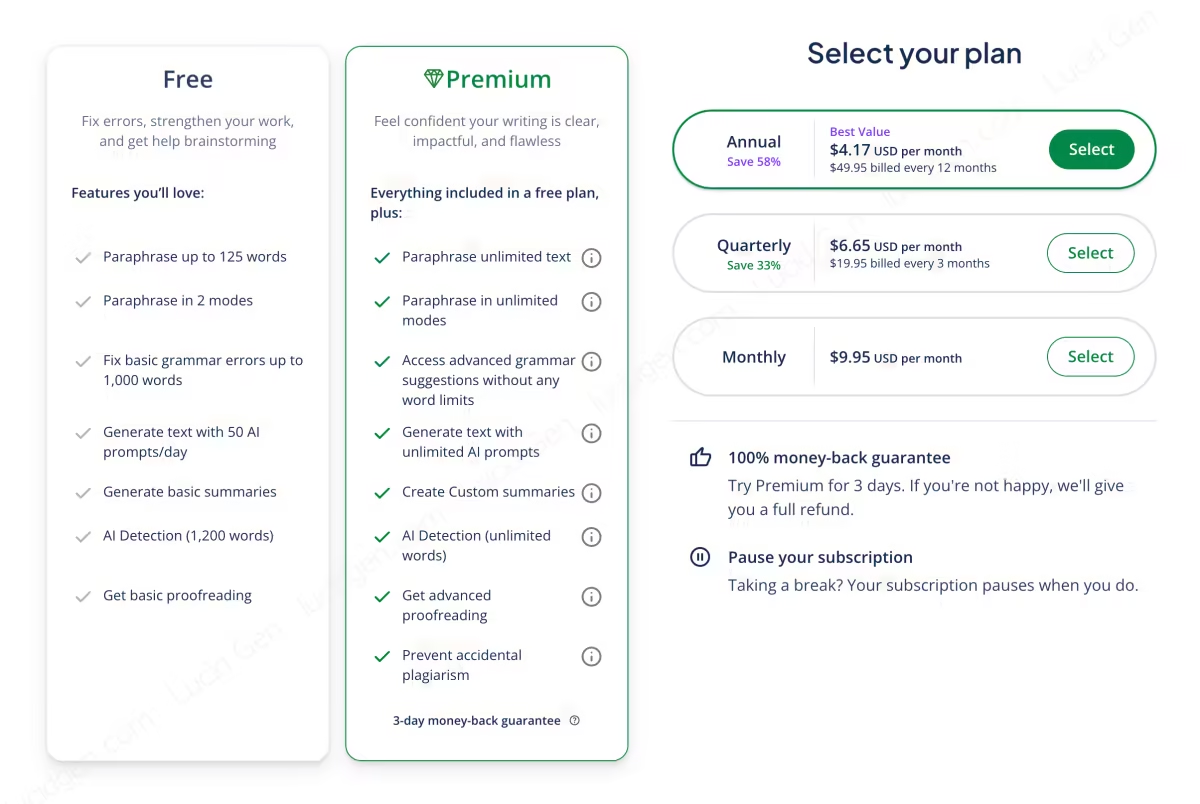
You can use QuillBot for free with basic features and some limits. Upgrading to QuillBot Premium gives you the following benefits (limits I recorded in December 2024; QuillBot may have changed them since, so check its Premium page before buying):
| Feature | Free | Premium |
|---|---|---|
| Paraphrase content limit | 125 words. | Unlimited. |
| Paraphrase mode limit | 2 modes. | Unlimited. |
| Grammar check | Basic, up to 1,000 words. | Advanced grammar suggestions with no word limit. |
| Create content with AI | 50 AI prompts / day. | Unlimited prompts. |
| Create content summary | Basic, up to 1,200 words. | Customizable, up to 6,000 words. |
| AI detection | 1,200 words. | Unlimited. |
| Proofreading | Basic. | Advanced. |
| Plagiarism detection | None. | 25,000 words / month. |
Using QuillBot on a computer
I recommend using QuillBot on a computer, because the website version is the most complete. QuillBot also offers browser extensions, a Microsoft Office add-in, and mobile apps, but none of them have as many features as the website. To cover every feature, I will use QuillBot Premium in this guide.
QuillBot Paraphraser
QuillBot Paraphraser rewrites a passage by swapping in synonyms and rephrasing sentences. This is QuillBot’s core feature. For basic use, just paste your text into the left box and click the Paraphrase button. To get better results, though, it is worth learning the advanced settings below.
Language, mode, and synonym level settings
Look at the menu above the Paraphraser boxes. QuillBot Paraphraser supports 26 languages, including Vietnamese. The modes let you shape the new text for different purposes.
- Standard: The default mode.
- Fluency: Makes the text read more smoothly.
- Natural: Makes the text sound natural, like everyday speech.
- Formal: Makes the text more formal.
- Simple: Makes the text easy for anyone to understand.
- Creative: Rewrites the text in a more creative way.
- Expand: Makes the text longer and more detailed.
- Shorten: Makes the text shorter and more concise.
- Custom: Works like an AI prompt. Just describe the style you want, for example: “Like a CEO”.
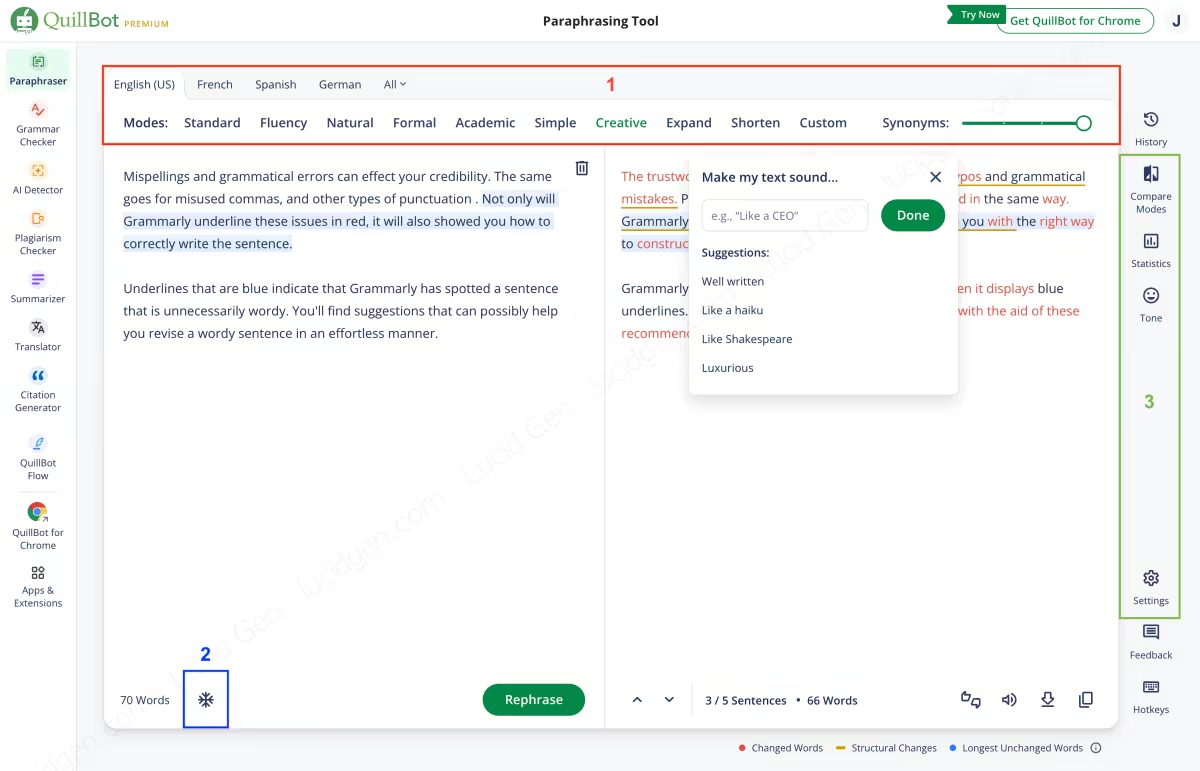
Freeze words you don’t want to paraphrase with Freeze Words
If you don’t want QuillBot to change technical terms, idioms, or SEO keywords, add them to Freeze Words.
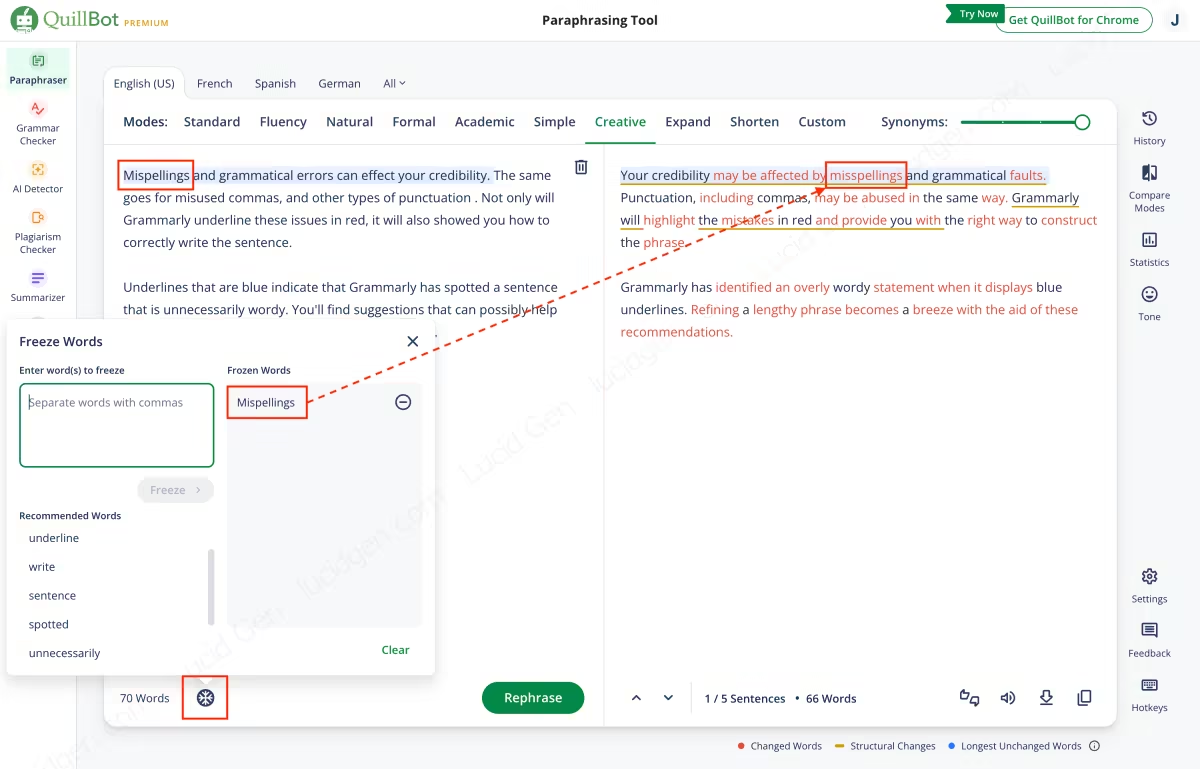
Compare results of multiple modes with Compare Modes
If you’re not sure which mode will give you what you want, try Compare Modes in the right-hand menu. It shows the results of all modes at once.
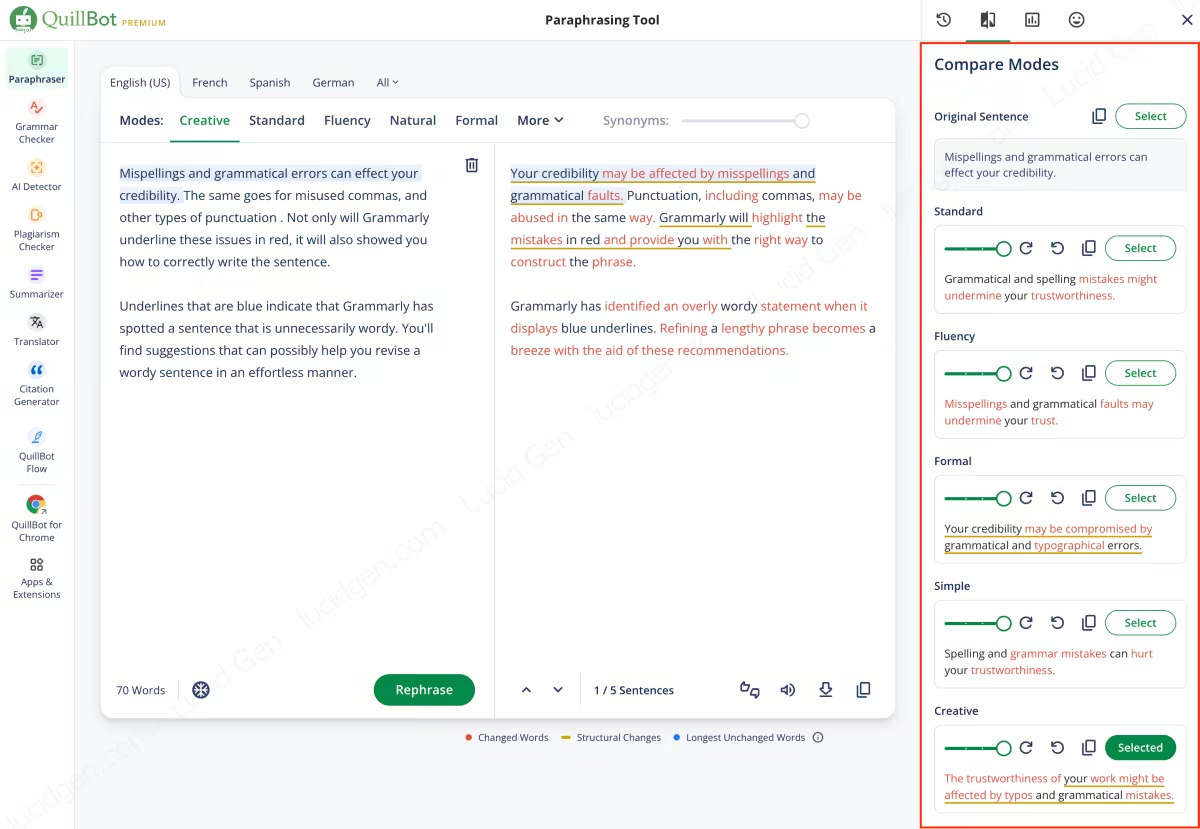
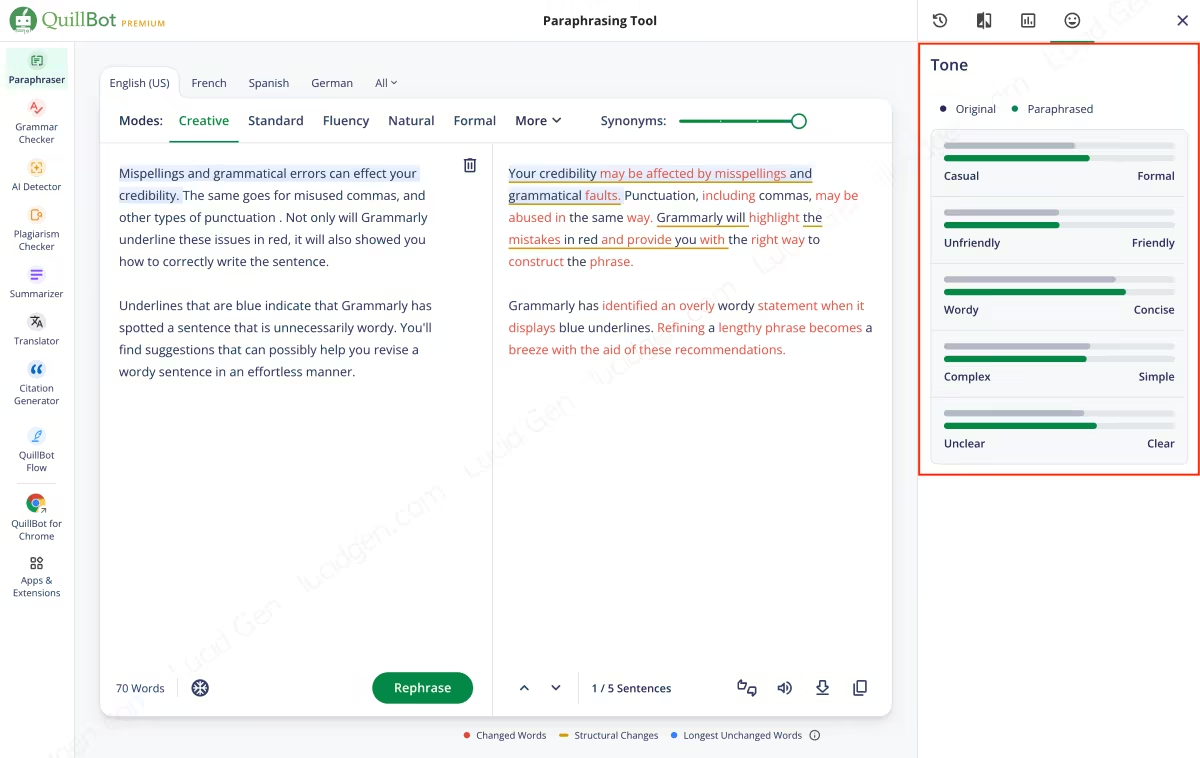
Check tone
This feature analyzes the tone of your rewritten text. Based on it, you can change the mode or adjust the synonym level until the tone is close to what you want.
Some other useful settings
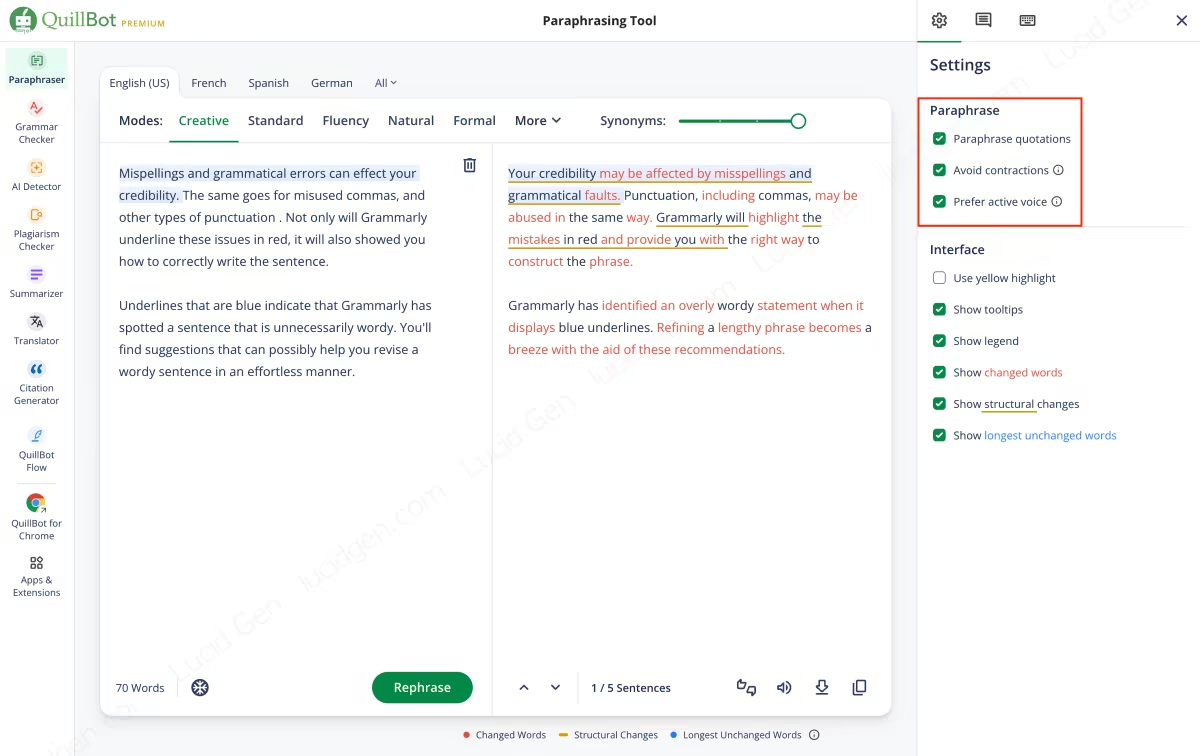
- Paraphrase quotations: Lets QuillBot rewrite text inside quotation marks.
- Avoid contractions: Avoids contractions, for example, writes “cannot” instead of “can’t”.
- Prefer active voice: Uses the active voice instead of the passive where possible.
QuillBot Grammar Checker
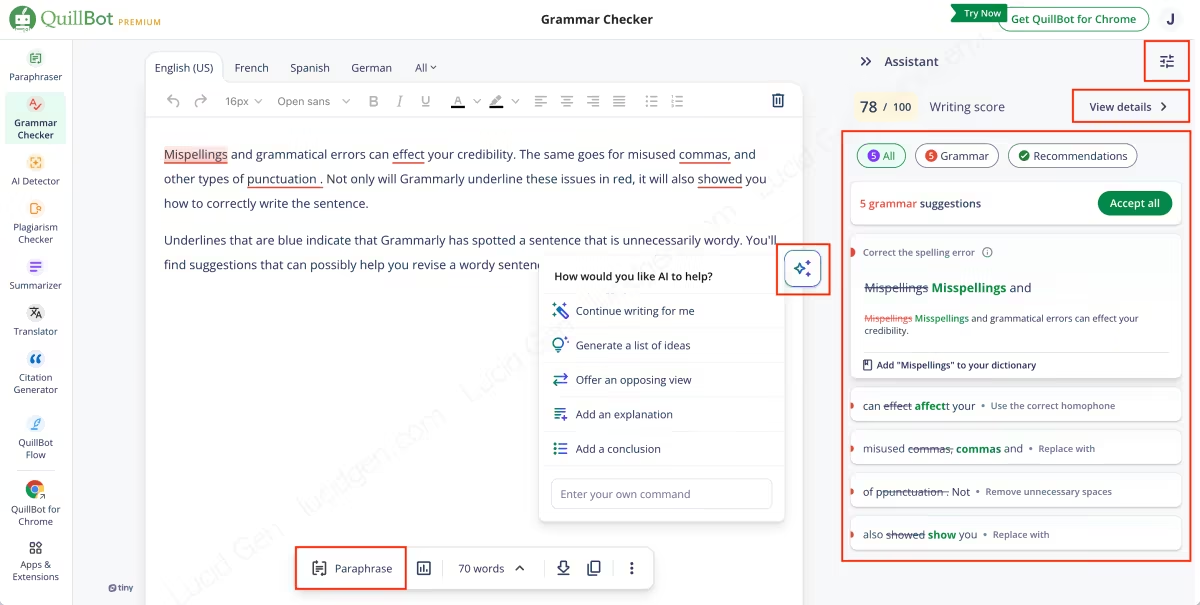
QuillBot Grammar Checker finds and fixes grammar mistakes. It also has built-in AI to help you come up with ideas and keep writing.
Advanced settings
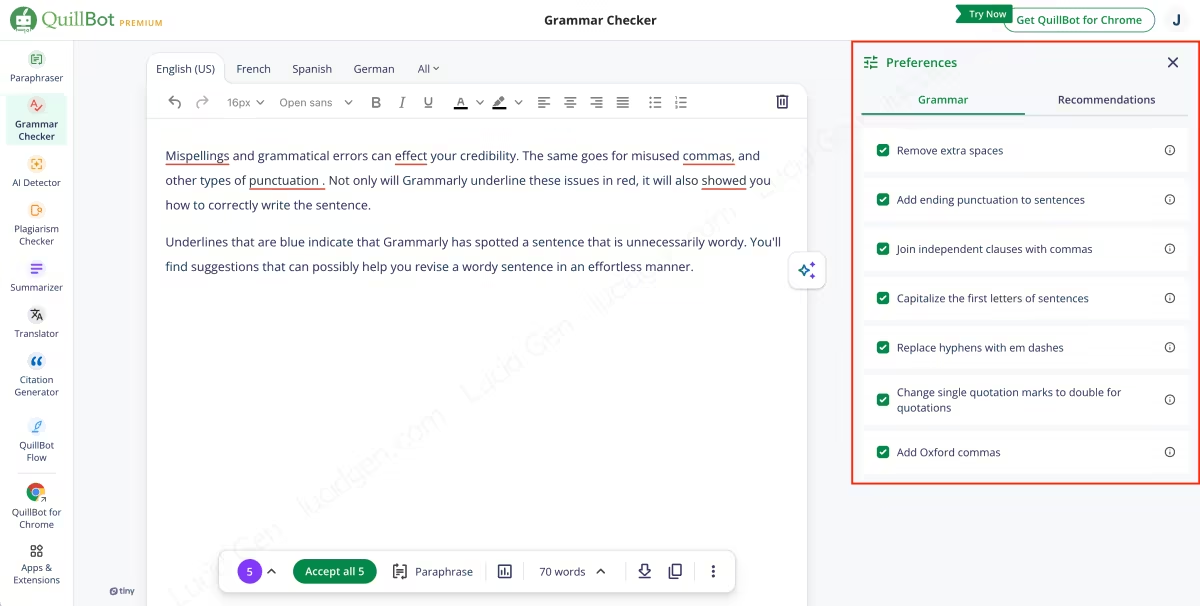
In the settings, you can turn individual grammar checks and editing suggestions on or off. Most of them are useful, so I recommend keeping them all on.
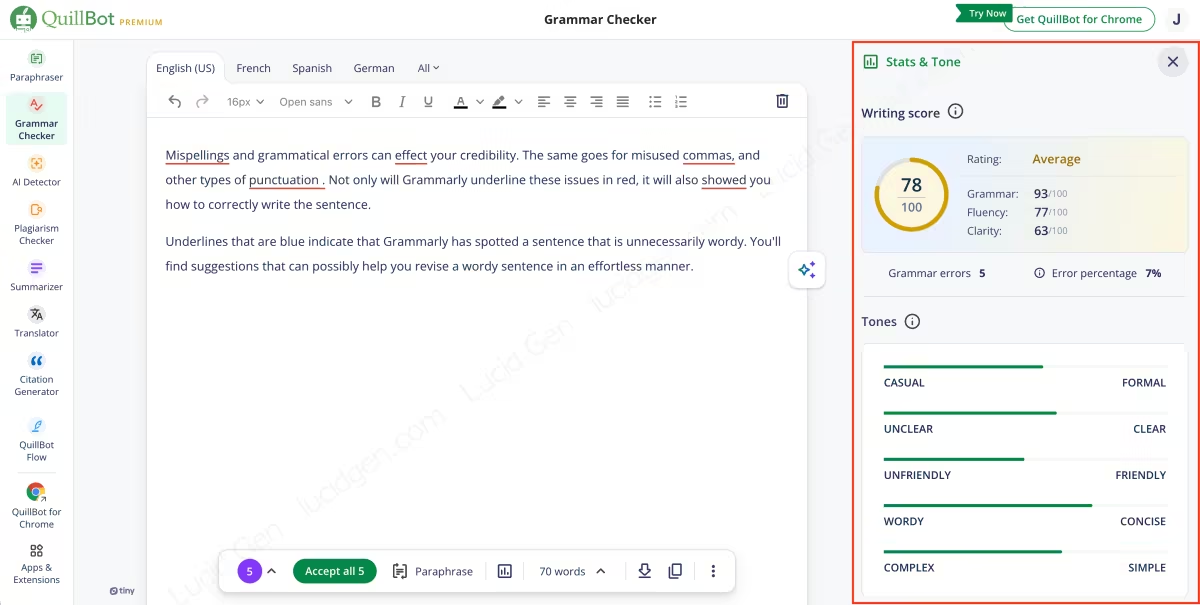
Check statistics and tone
QuillBot Grammar Checker also shows a writing score and the tone of your text. This gives you a way to measure what you are writing, so you can adjust it and improve the quality.
QuillBot Plagiarism Checker
QuillBot Plagiarism Checker checks your text for plagiarism. It’s nice to have this built in, since it makes QuillBot feel like an all-in-one tool.
However, treat the results of QuillBot Plagiarism Checker as a reference only. Teachers and schools usually don’t use QuillBot; they mainly check plagiarism with Turnitin, and Turnitin’s results are generally more reliable.
Here is why Turnitin’s results are more reliable than QuillBot’s. The key is how much data each one has. Turnitin combines data from the internet and millions of essays submitted from all schools worldwide, while QuillBot uses data from the internet only.
Back to using QuillBot Plagiarism Checker: just paste your text or upload a file, wait 5 to 10 minutes, and you will get the results.
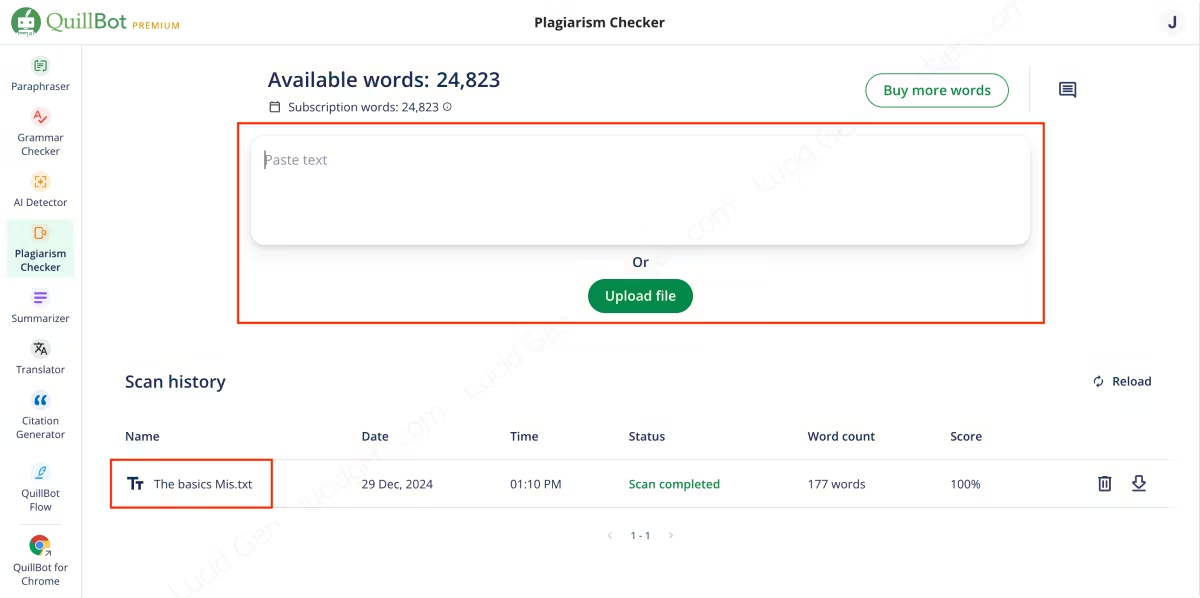
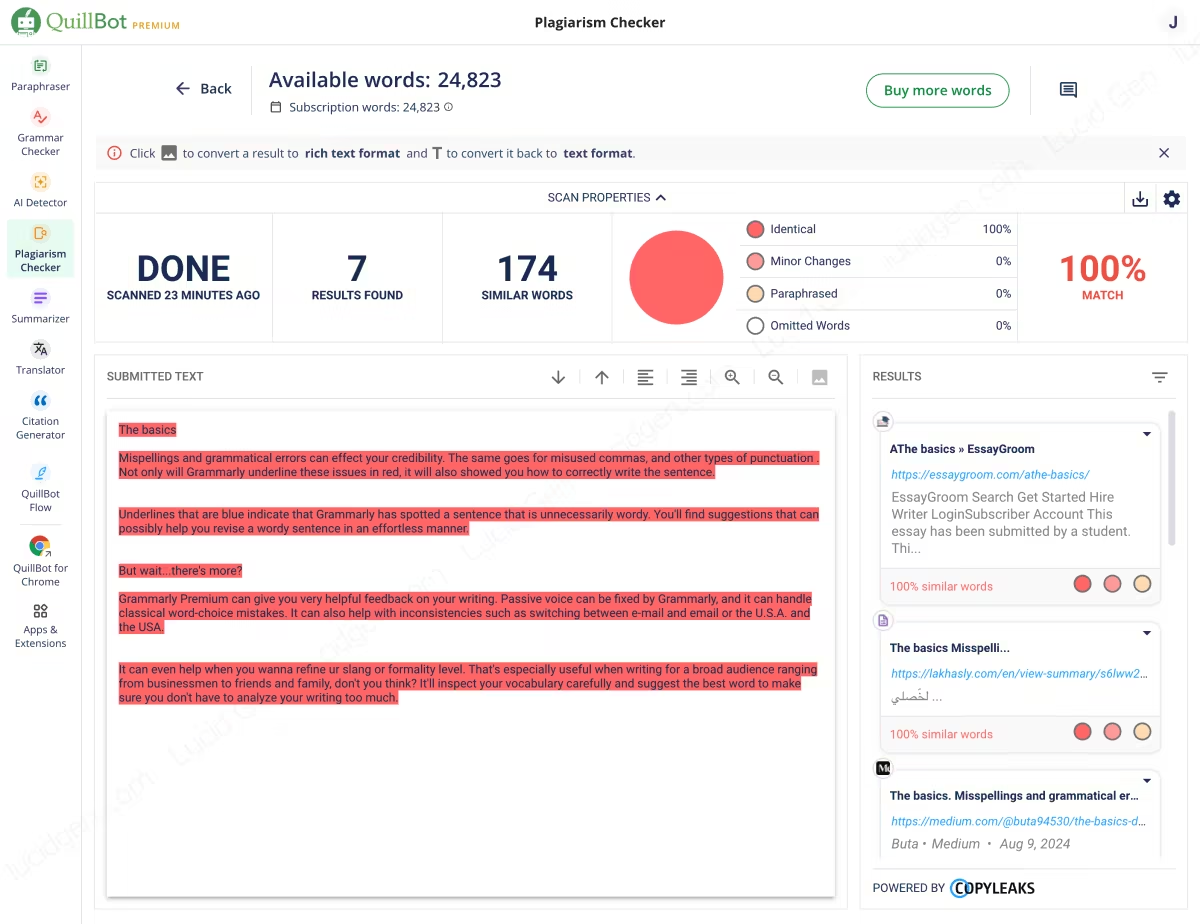
Click the file name to see the details, including the plagiarism percentage and the sources with similar content.
QuillBot AI Detector
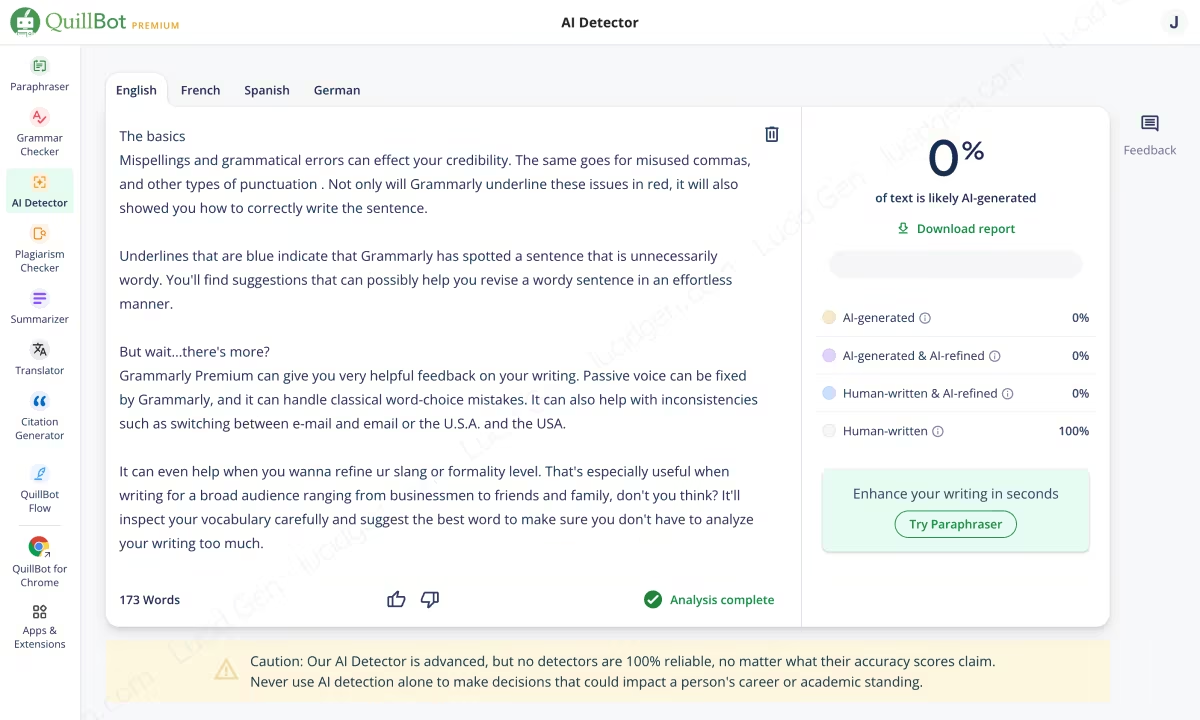
QuillBot AI Detector checks whether a text was written by AI. It is simple to use: paste the text you want to check and click the Detect button.
Be careful: QuillBot itself warns that no AI detector is completely reliable, including QuillBot AI Detector.
QuillBot Summarizer
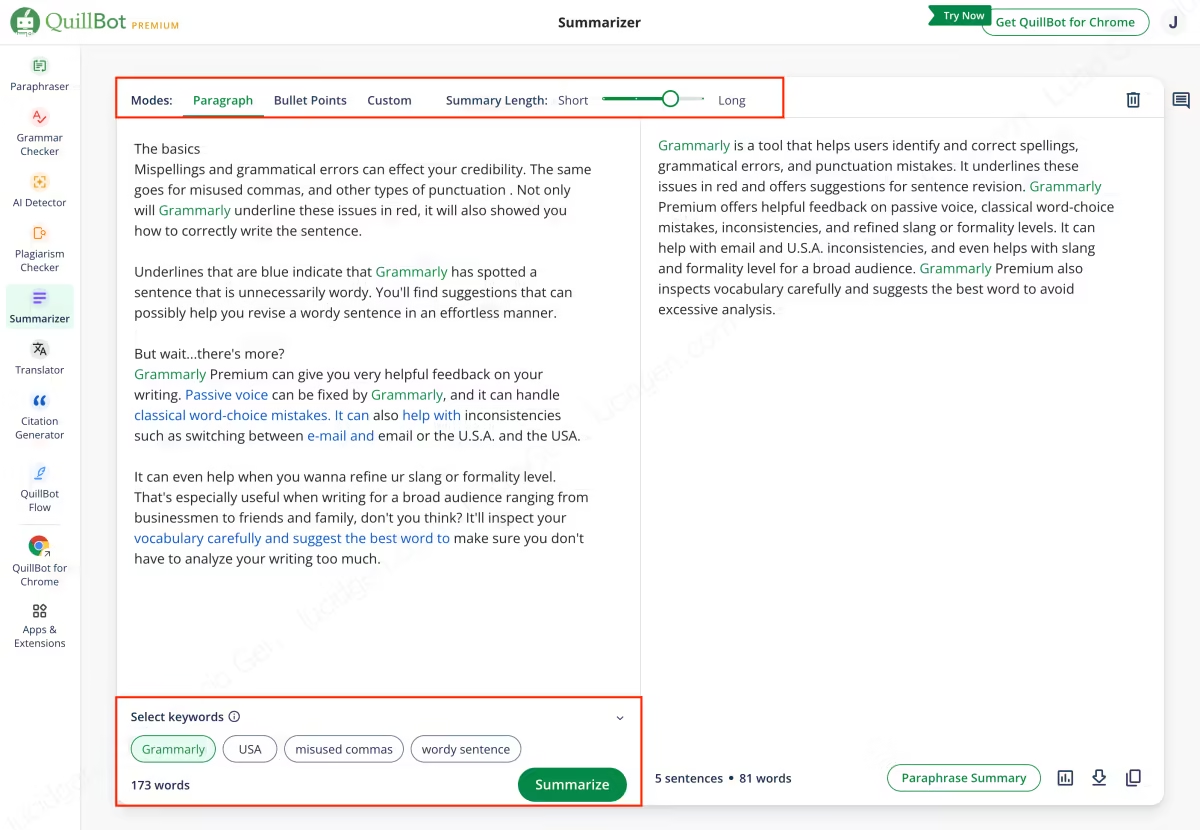
QuillBot Summarizer condenses your text and offers three modes for flexible summaries.
- Paragraph: Summarizes the text in a paragraph.
- Bullet Points: Summarizes the text as key points.
- Custom: Works like an AI prompt. Describe how you want it summarized below the original text.
When using QuillBot Summarizer, also set the summary length and select the main keywords of the text.
QuillBot Citation Generator
QuillBot Citation Generator finds sources and creates citations in APA, MLA, and Chicago formats. In my opinion, it is one of QuillBot’s most distinctive features. It saves you time and helps you avoid formatting mistakes in your citations.
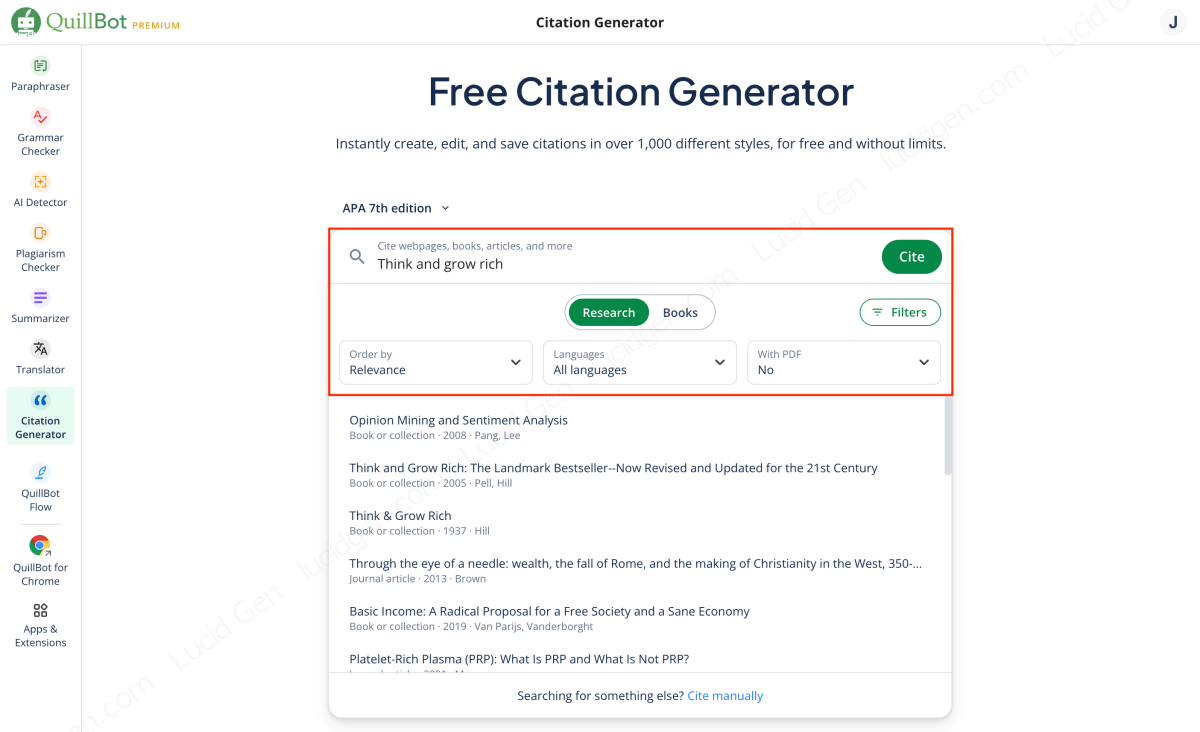
How to use QuillBot Citation Generator:
- Enter a phrase, title, or URL in the search bar.
- Research Mode: Searches for sources on the internet, usually websites.
- Books Mode: Searches for books.
- Select the language.
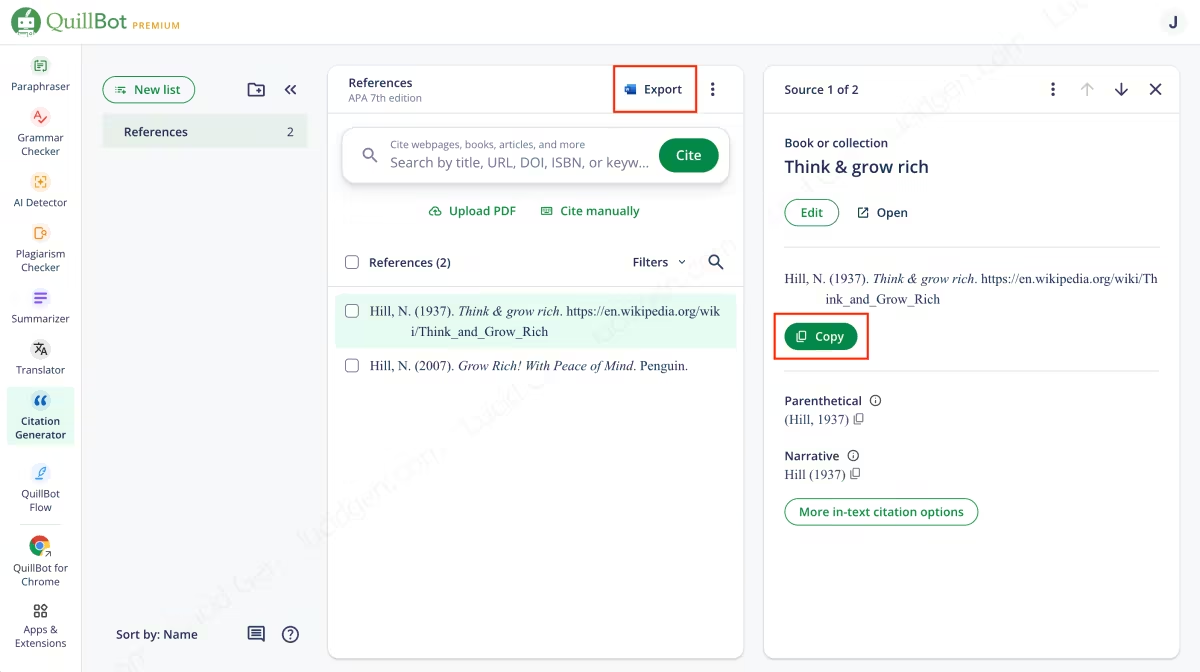
Once you have your citations, copy them or export them to a Word file to use in your thesis. You can also create folders to keep your citation lists organized.
QuillBot Translator
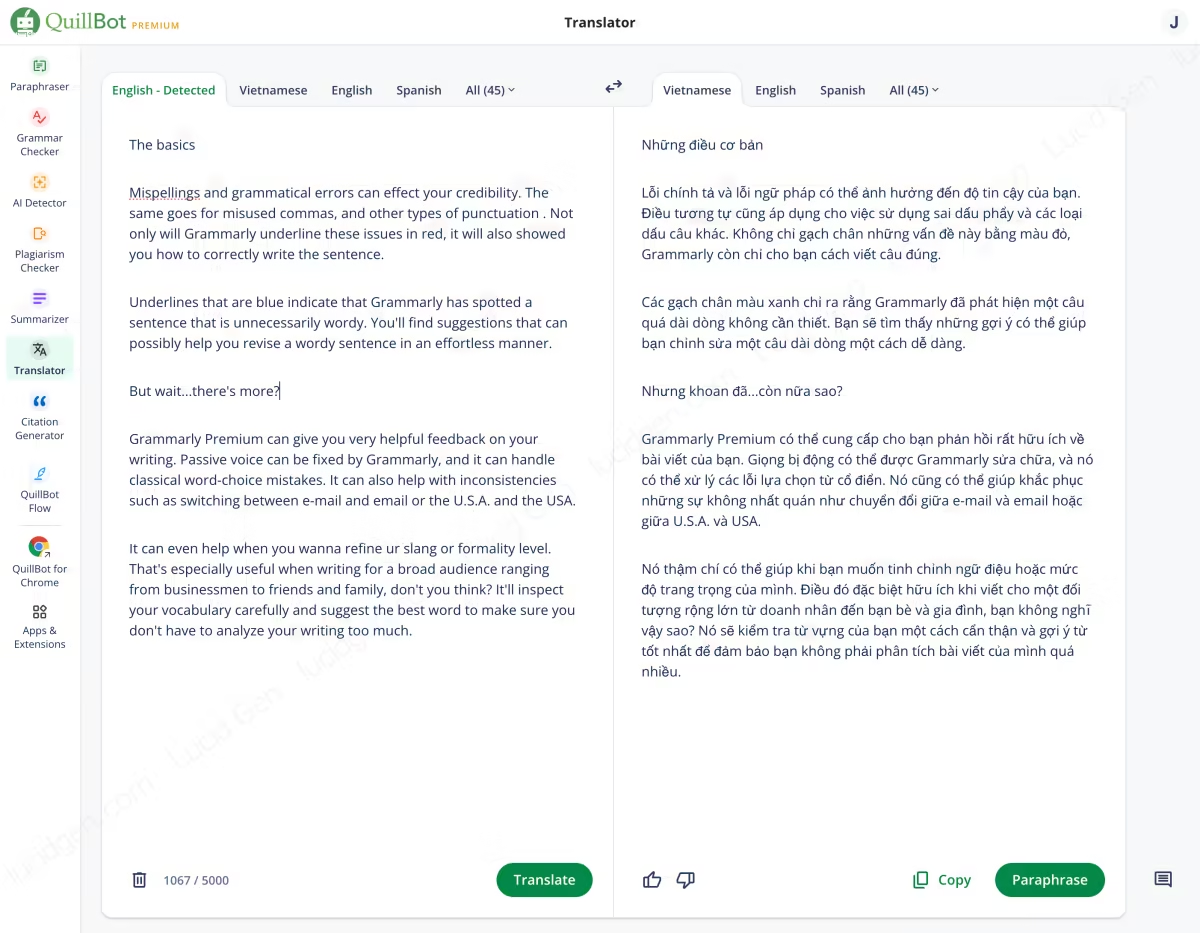
QuillBot Translator translates text into another language. Its highlight is that you can paraphrase the translation right away.
Paste the original text into the left box and click Translate. If you are not happy with the result, click the Paraphrase button to get a new version.
QuillBot Flow
QuillBot Flow is QuillBot’s all-in-one editor, and you can use it as your main writing space. It brings every QuillBot feature into one editor, so you can draft and check your text without opening each tool separately.
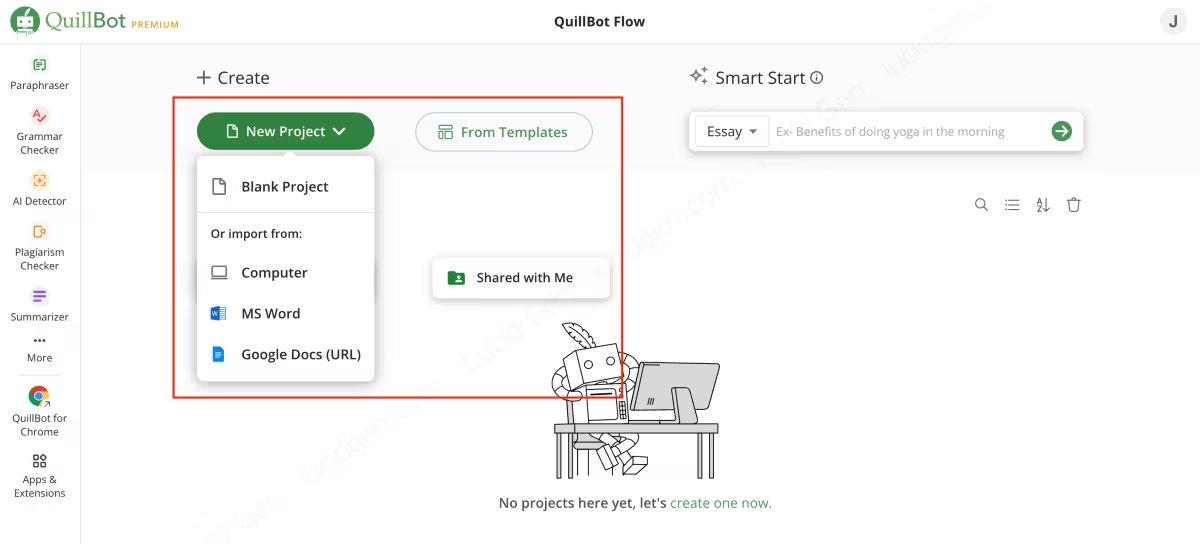
Step 1: Create a new project. You can start with a blank project or upload a file from your computer.
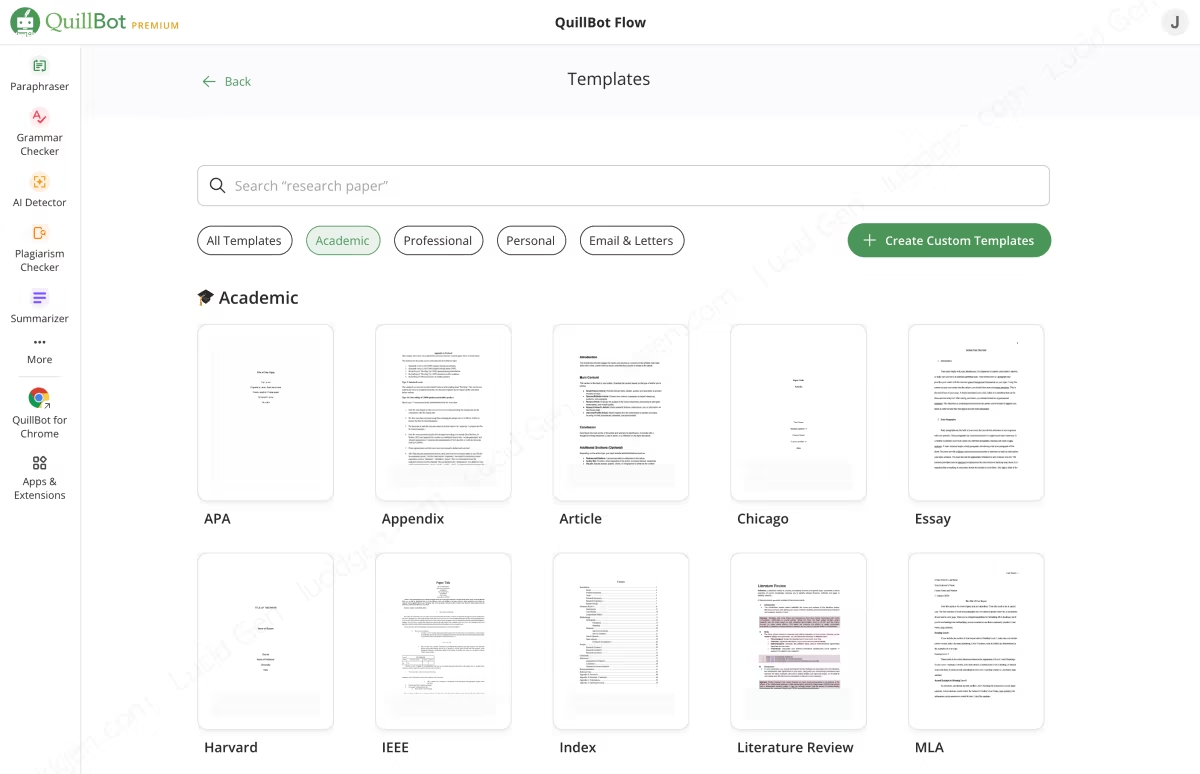
You can also choose a template, and QuillBot Flow will create a basic outline in a popular format such as APA, Chicago, Article, or Essay.
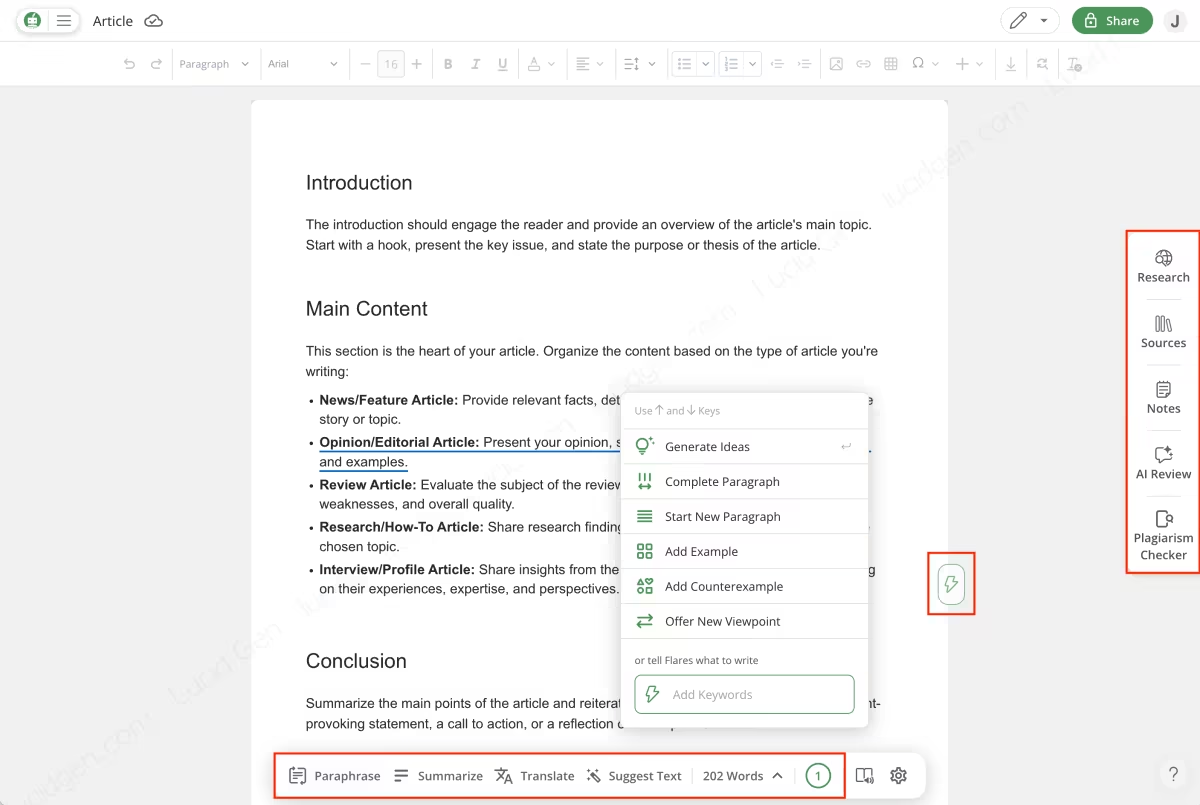
Step 2: Use the writing tools. They include:
- Paraphrase.
- Summarize.
- Suggest Text.
- Grammar check.
- Plagiarism Checker.
- AI Review.
Paraphrase
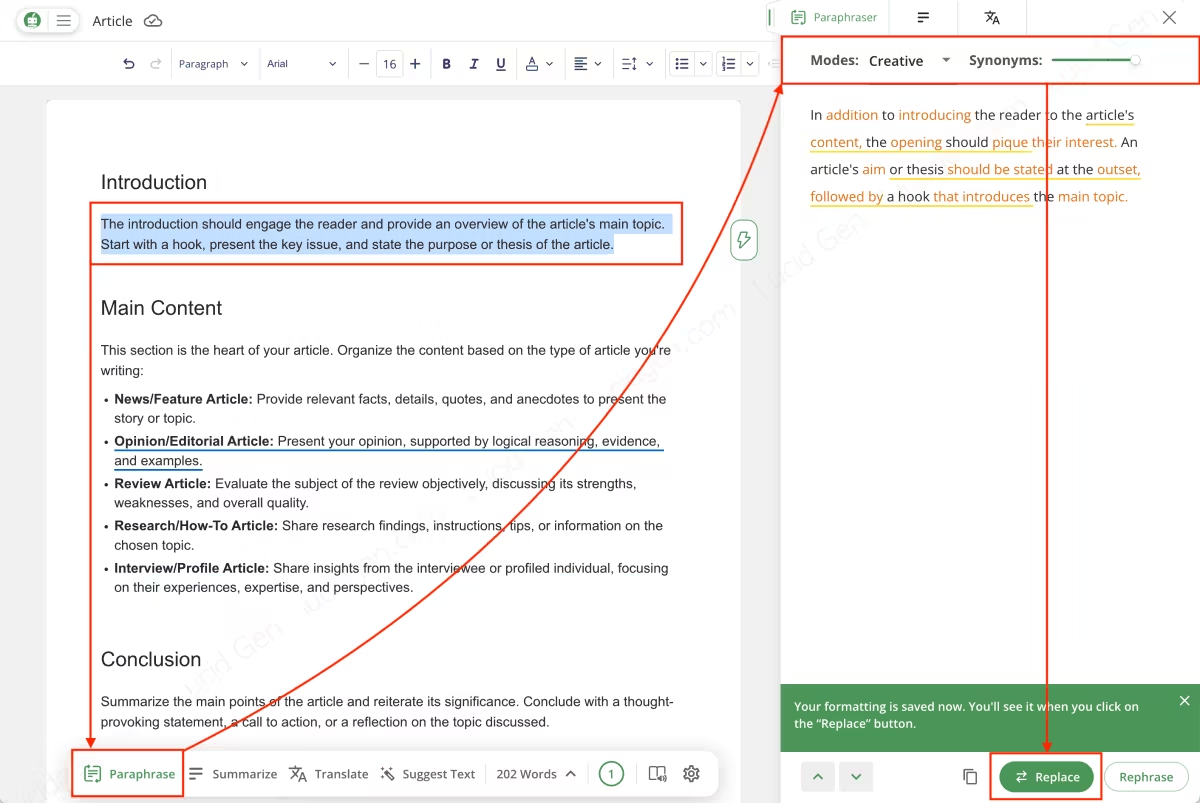
Select some text and click the Paraphrase button, and the result appears in the right panel. All the modes from QuillBot Paraphraser are available here too.
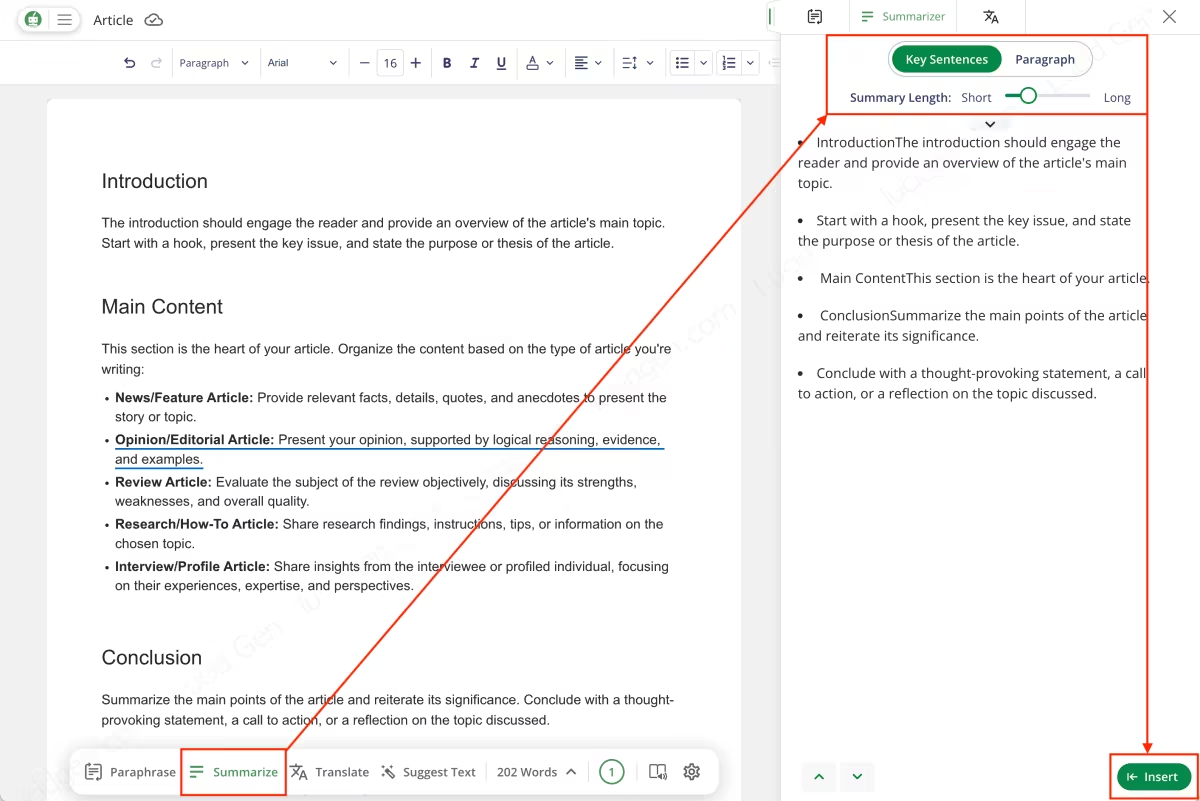
Summarize
Click the Summarize button to get a summary in the right panel. There are two modes: a paragraph or key points.
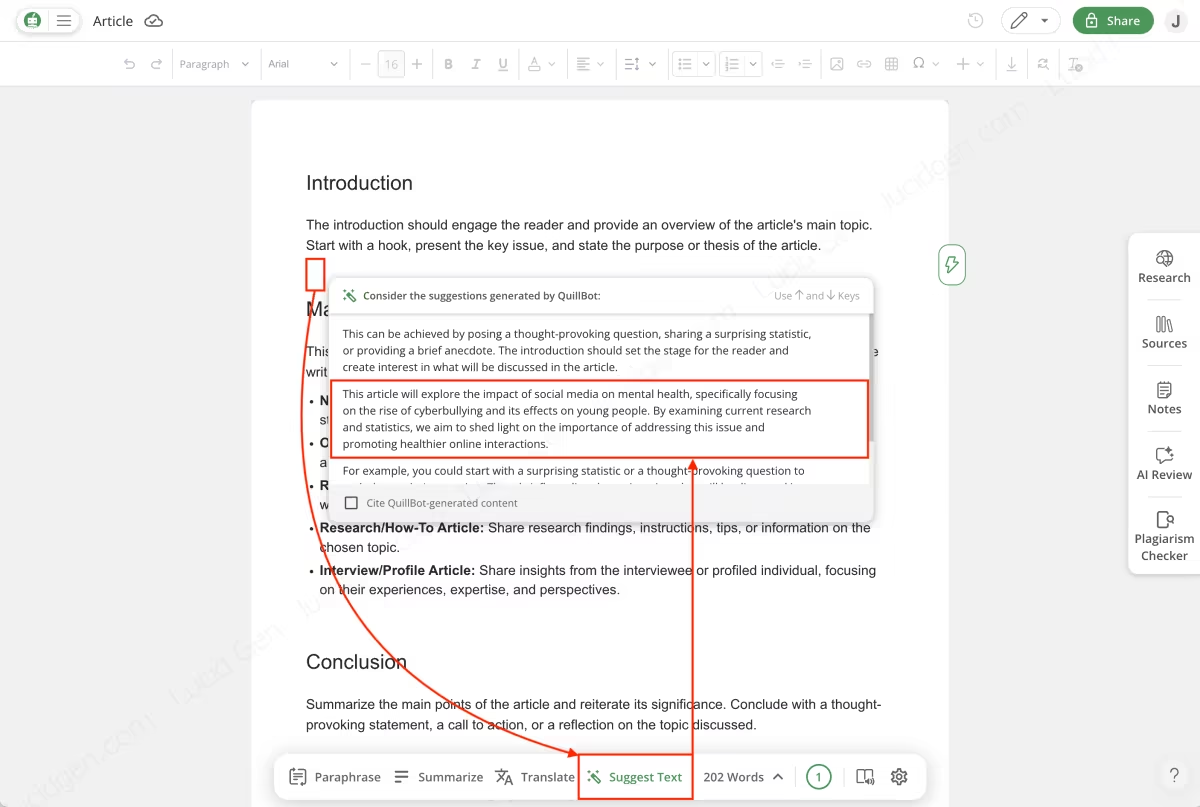
Suggest Text
Place the cursor on a blank line and click the Suggest Text button. QuillBot will suggest text that fits that spot.
Grammar check
Words and sentences with grammar mistakes are underlined in different colors depending on the type of error. To fix one, click the underlined text and decide whether to accept the suggestion.
To fix all grammar mistakes at once, click the Fix all errors button at the bottom. The button also shows how many errors there are.
Step 3: Use the checking tools. They include:
- Research and Sources: Create citations like QuillBot Citation Generator.
- AI Review: Asks AI to review your text and suggest edits based on the goal you give it.
- Plagiarism Checker: Check for plagiarism like QuillBot Plagiarism Checker.
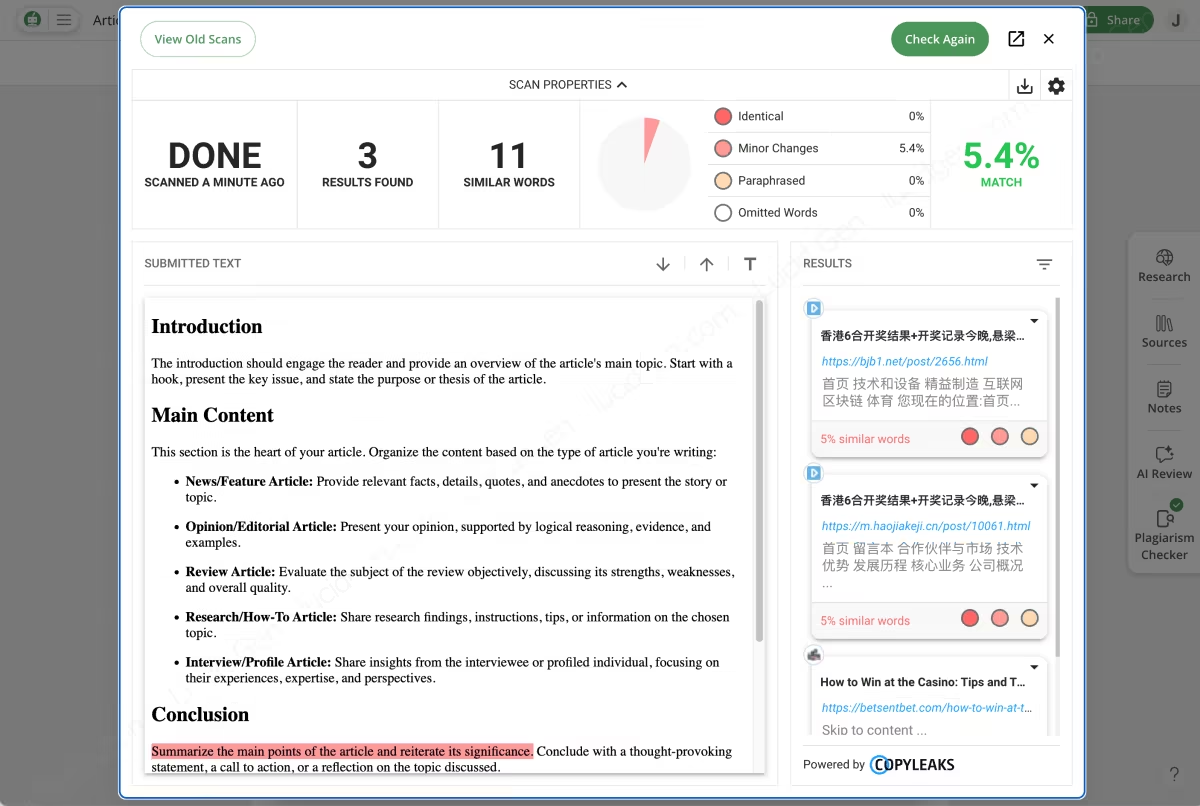
Plagiarism Checker
Click the Plagiarism Checker button to get the same results table as in QuillBot Plagiarism Checker.
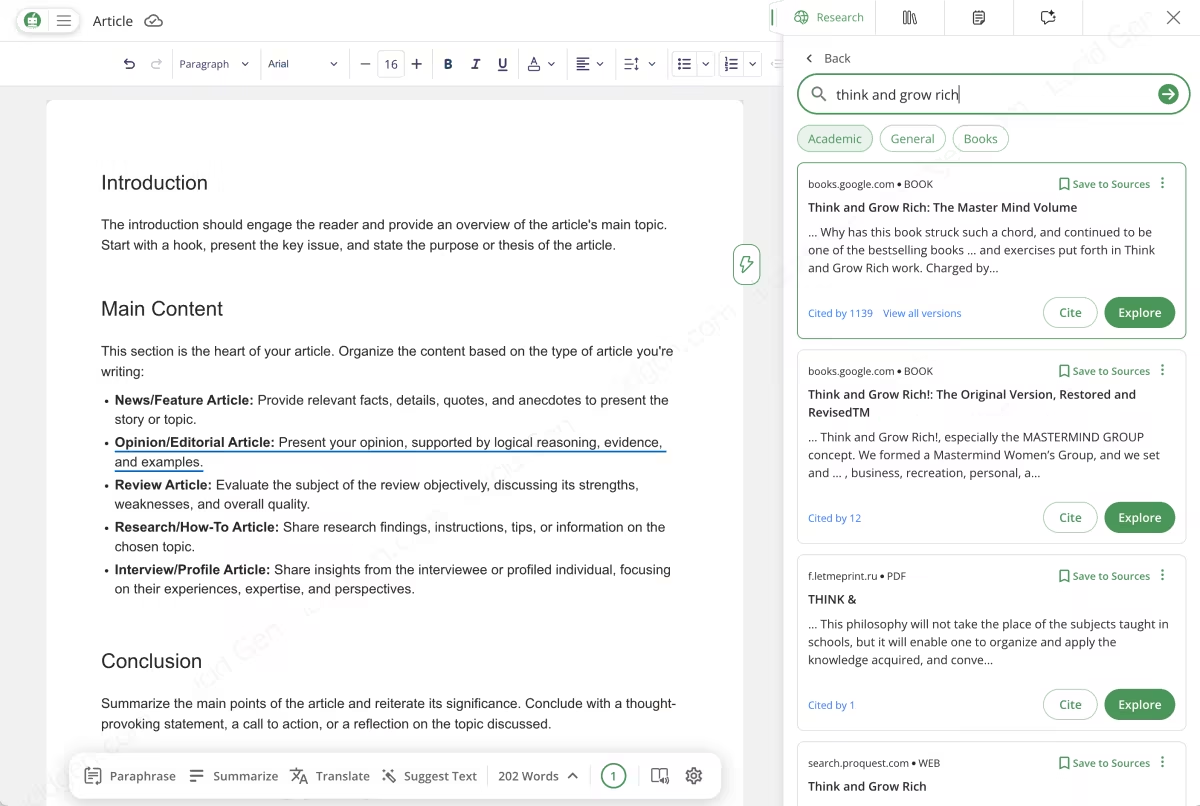
Research
Click Research or Sources and search for a topic. You can use the content of the results or cite them as sources.
AI Review
AI Review in QuillBot Flow reviews your text and suggests edits based on your requirements or goals. Click AI Review and enter your goal.
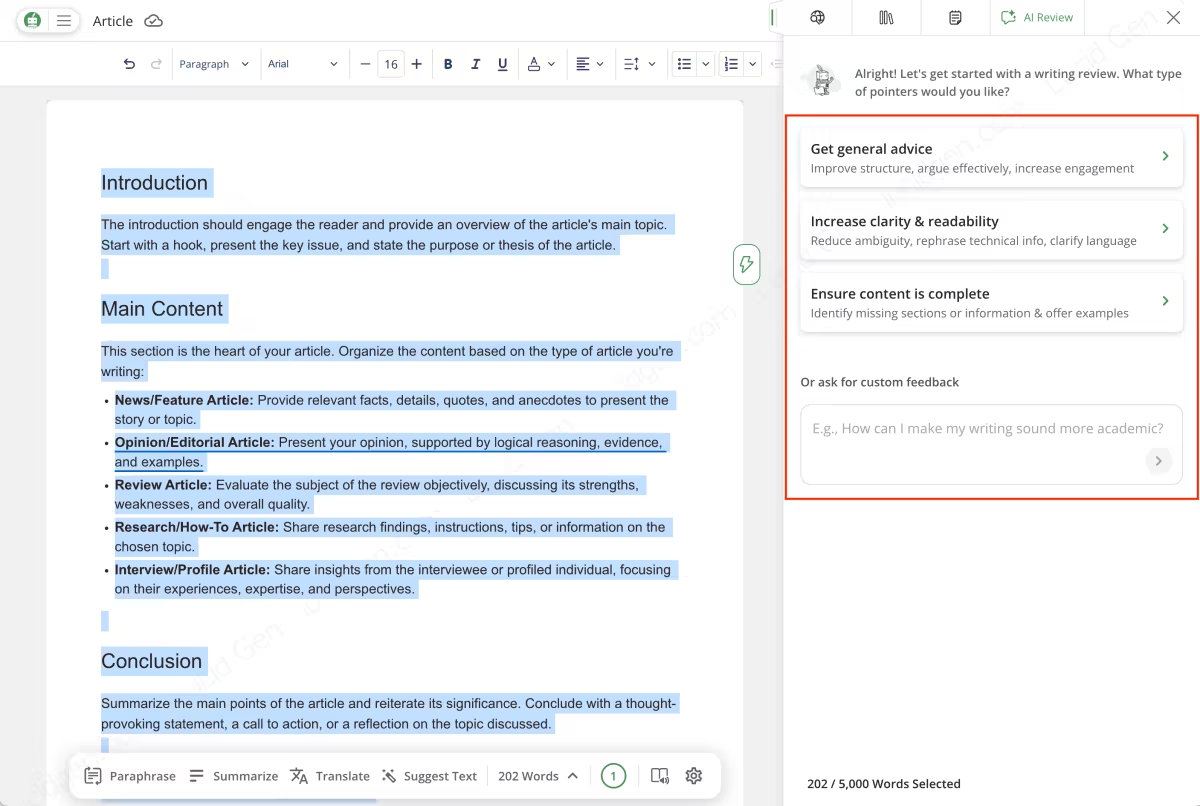
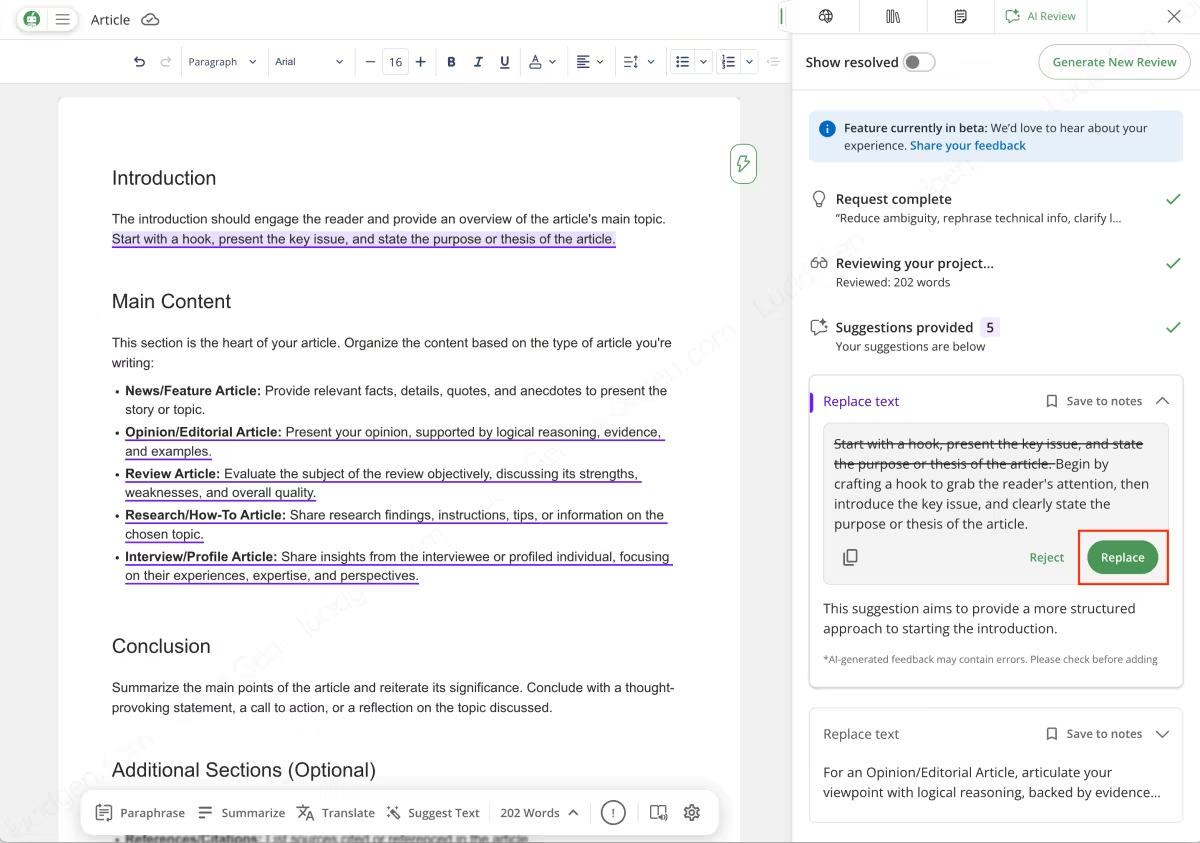
Go through the suggestions from AI Review and choose to accept or ignore each one.
Install the QuillBot browser extension
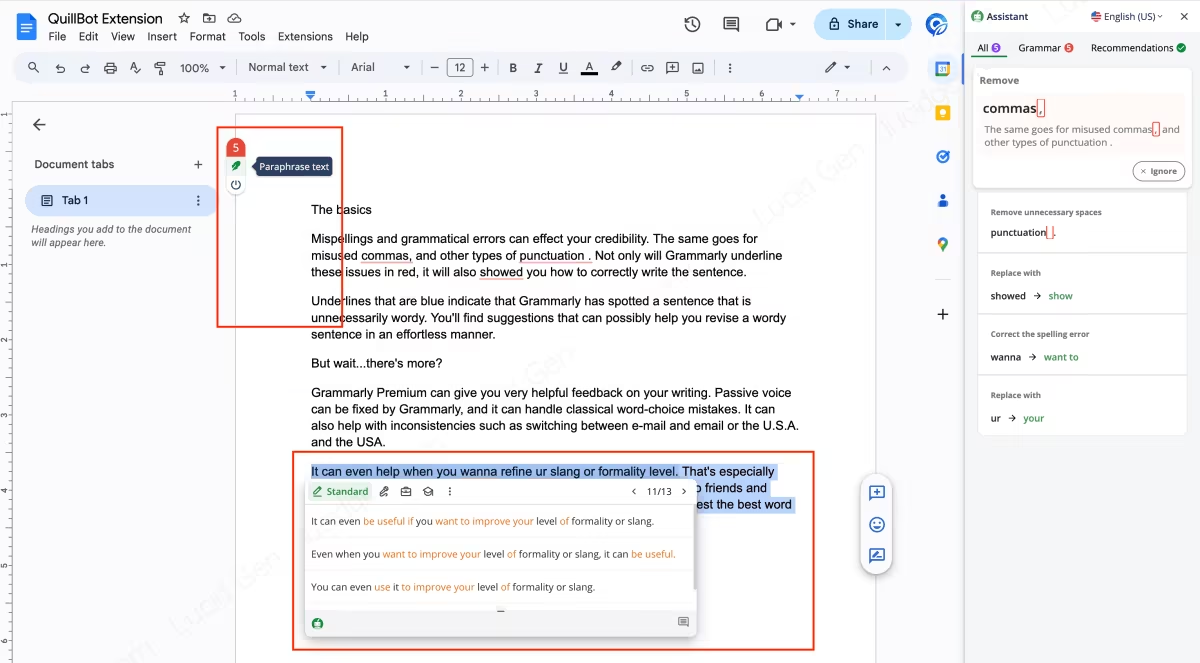
You can get QuillBot suggestions while writing on other websites, such as Google Docs by adding the extension to your browser.
Main features of the QuillBot browser extension:
- Paraphrase content.
- Fix grammar mistakes.
Note: Chrome works best with the extension; other browsers may not be compatible.

After installing the extension, go to any website with a text box, click the QuillBot button, and try it out. Use the suggestion panel on the right to fix grammar mistakes, or select some text to paraphrase it.
Install the QuillBot add-in for Word
If you mostly work in Microsoft Word, the QuillBot add-in lets you use QuillBot’s features right inside Word.
Main features of the QuillBot add-in for Word:
- Paraphrase content.
- Fix grammar mistakes.
- Summarize content.
- Translate content.
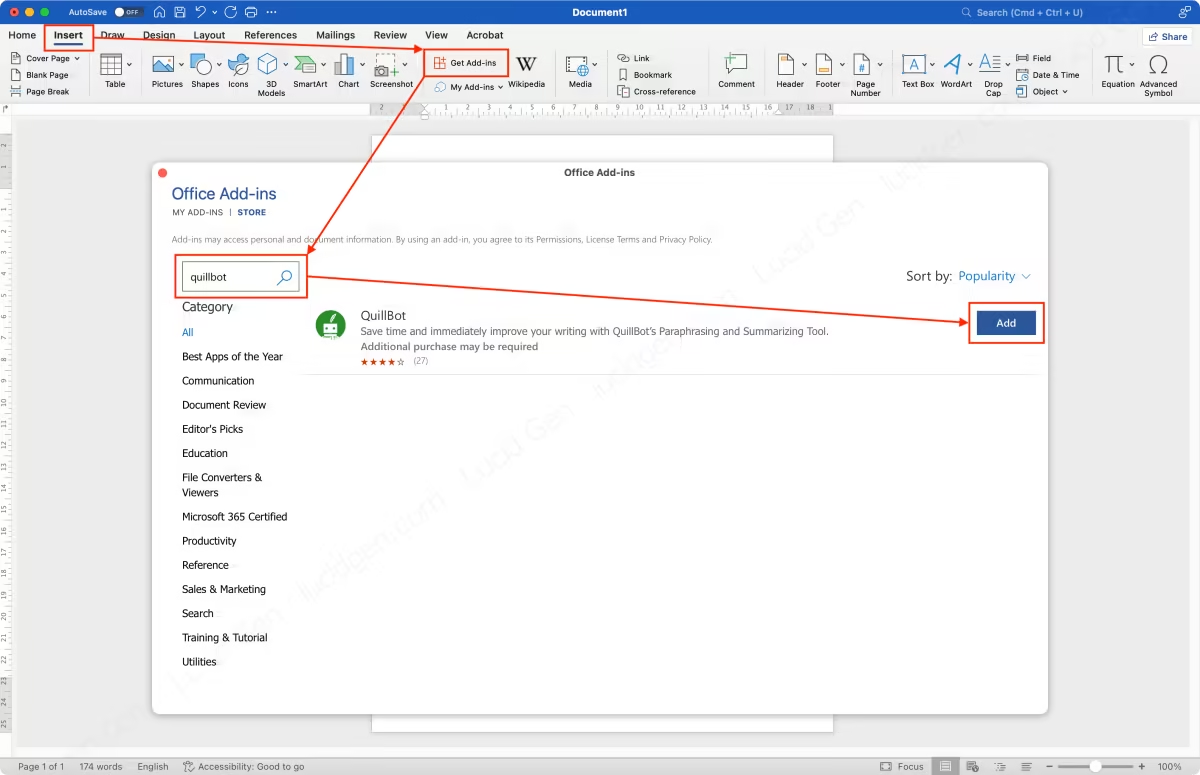
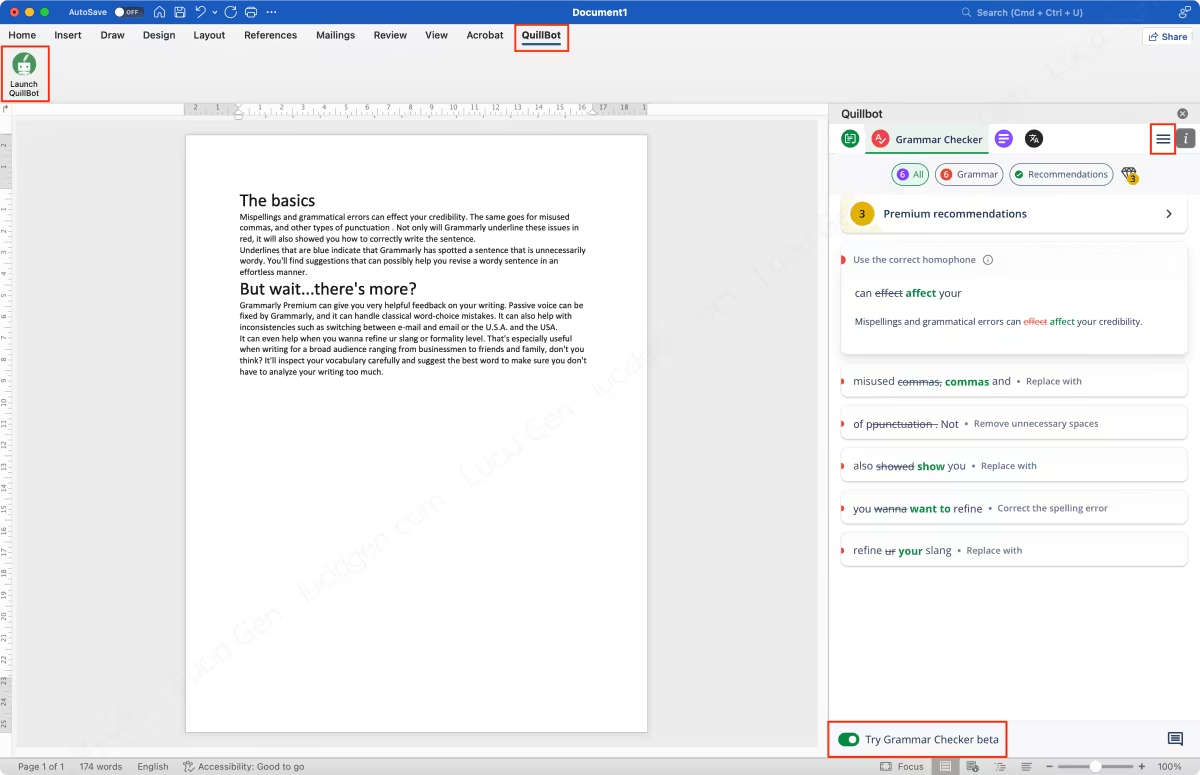
Step 1: Install the QuillBot add-in. Go to Insert > Get Add-ins > search “QuillBot” > click the Add button.
Step 2: Open the QuillBot add-in in Word. Go to QuillBot in the menu and click Launch QuillBot. If Grammar Checker doesn’t work, turn on Try Grammar Checker beta. To log in, click the menu button (three lines).
Install the QuillBot app on macOS
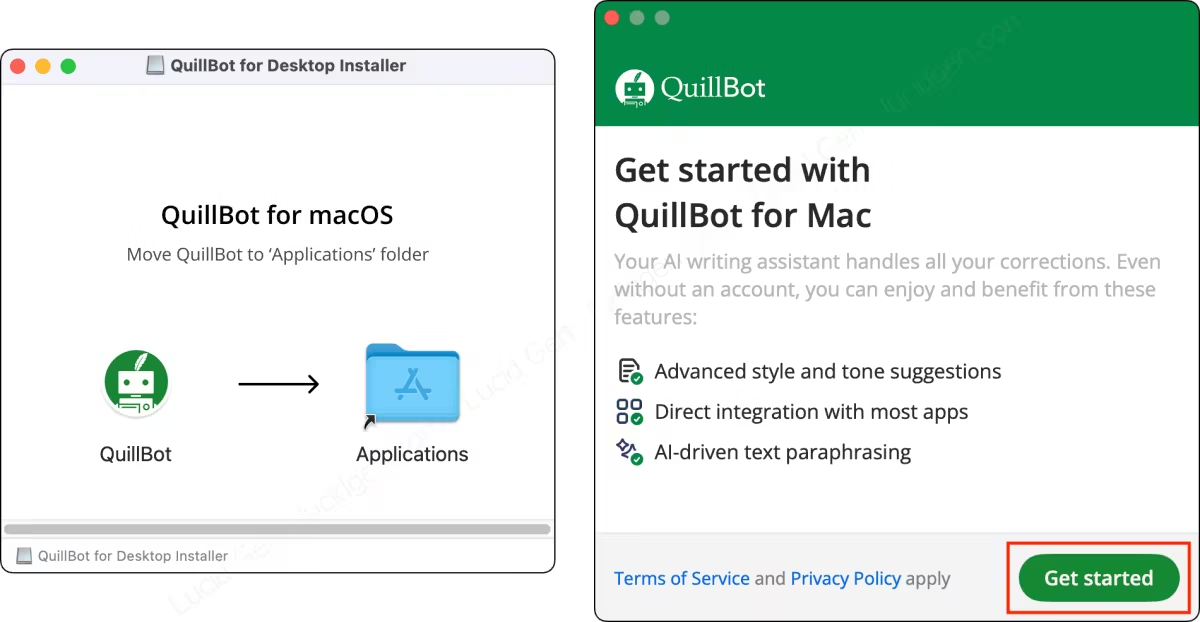
This app is called QuillBot Desktop, and for now it is only available for macOS. QuillBot Desktop runs in the background and shows editing suggestions while you write in supported apps such as Word, Outlook, WhatsApp, Mail, and Notes.
Step 1: Install QuillBot Desktop. Download the installation file from the official QuillBot website, open it, and drag QuillBot into the Applications folder as shown below. Then open QuillBot from Launchpad and click the Get started button.
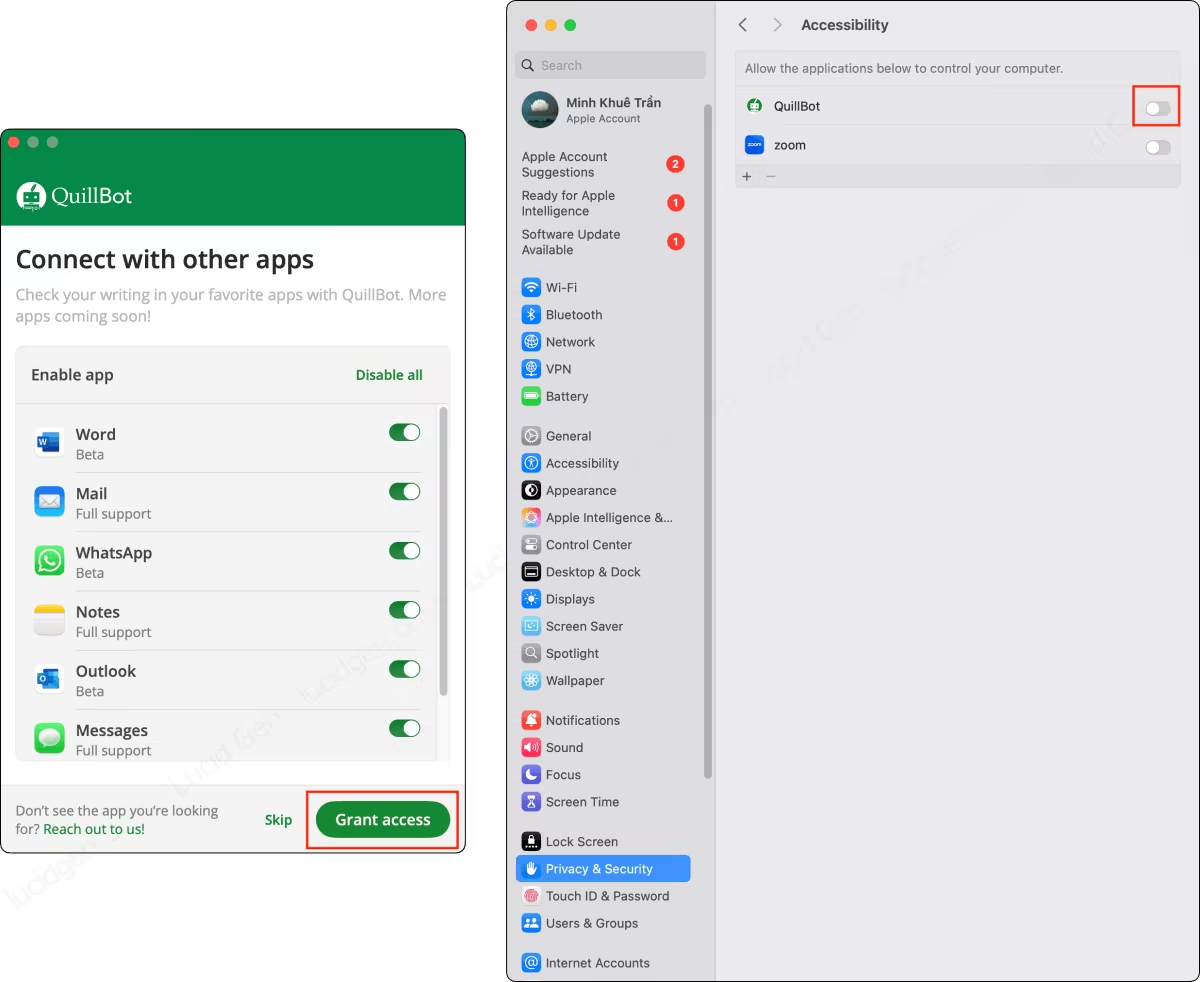
Step 2: Give QuillBot access. Click the Grant access button, then enable QuillBot in the Accessibility window.
Step 3: Use QuillBot Desktop. Open any supported app and you will see the QuillBot button in the bottom corner of the window. Click it to open the editing suggestions. It works much like the extension and add-in I covered above.

Using QuillBot on a phone
The QuillBot phone app has fewer features, but the QuillBot keyboard lets you quickly paraphrase whatever you are typing.
Main features of the QuillBot phone app:
- Paraphrase content.
- Check grammar.
- Detect AI-generated content.
- The QuillBot keyboard for quick paraphrasing (English only).
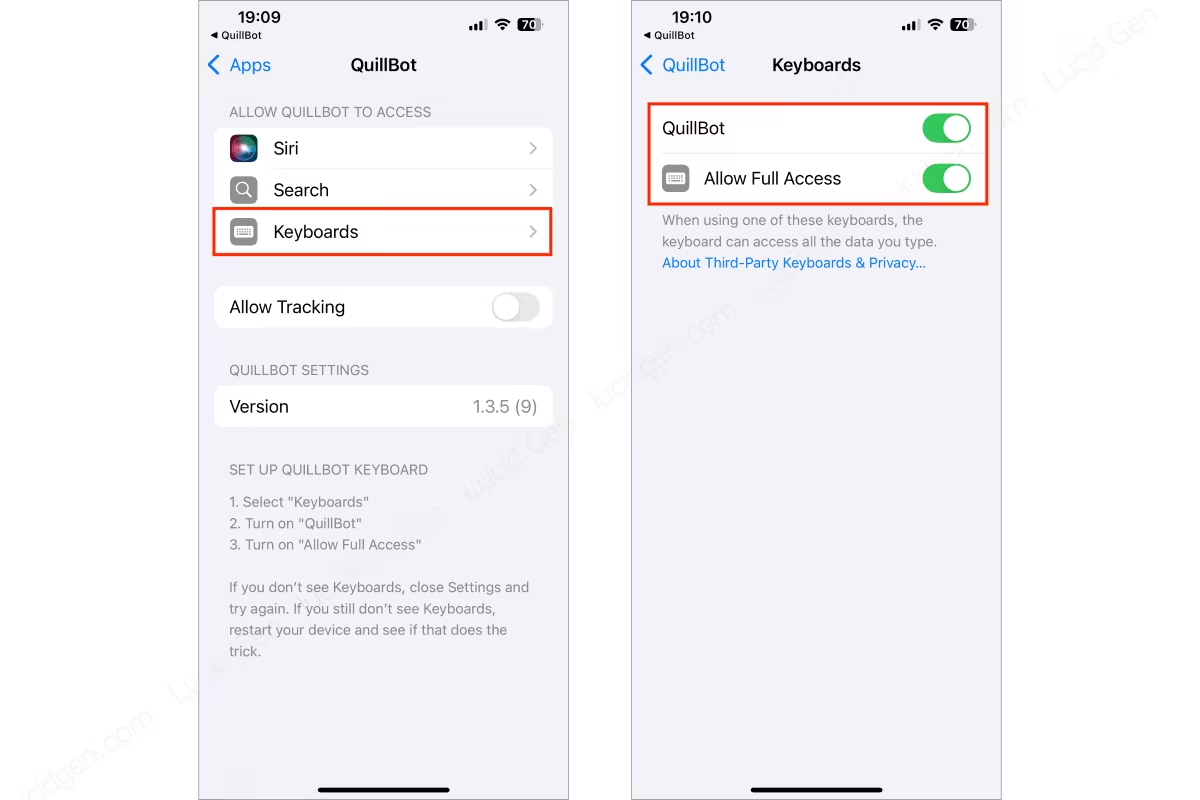
Step 1: Install QuillBot and give it access. Open the QuillBot app, tap Set up keyboard, then tap Open settings.
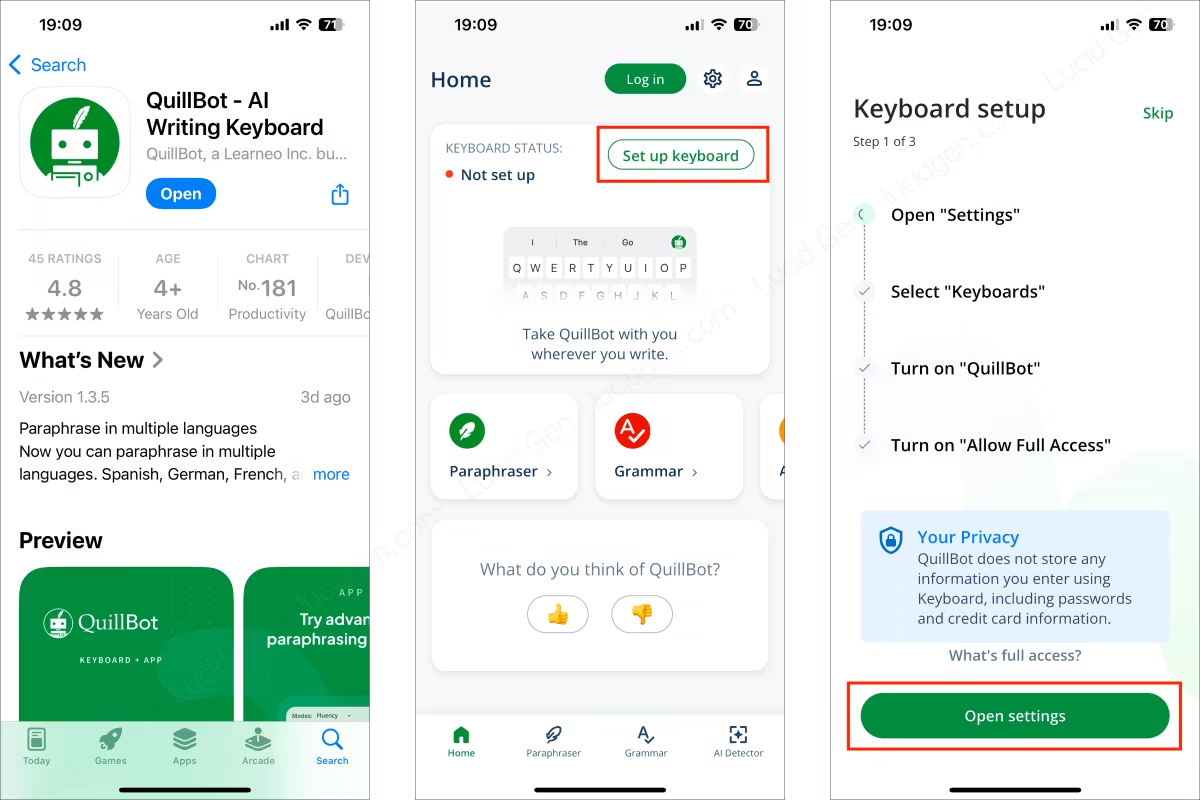
Go to Keyboards, enable QuillBot and Allow Full Access.
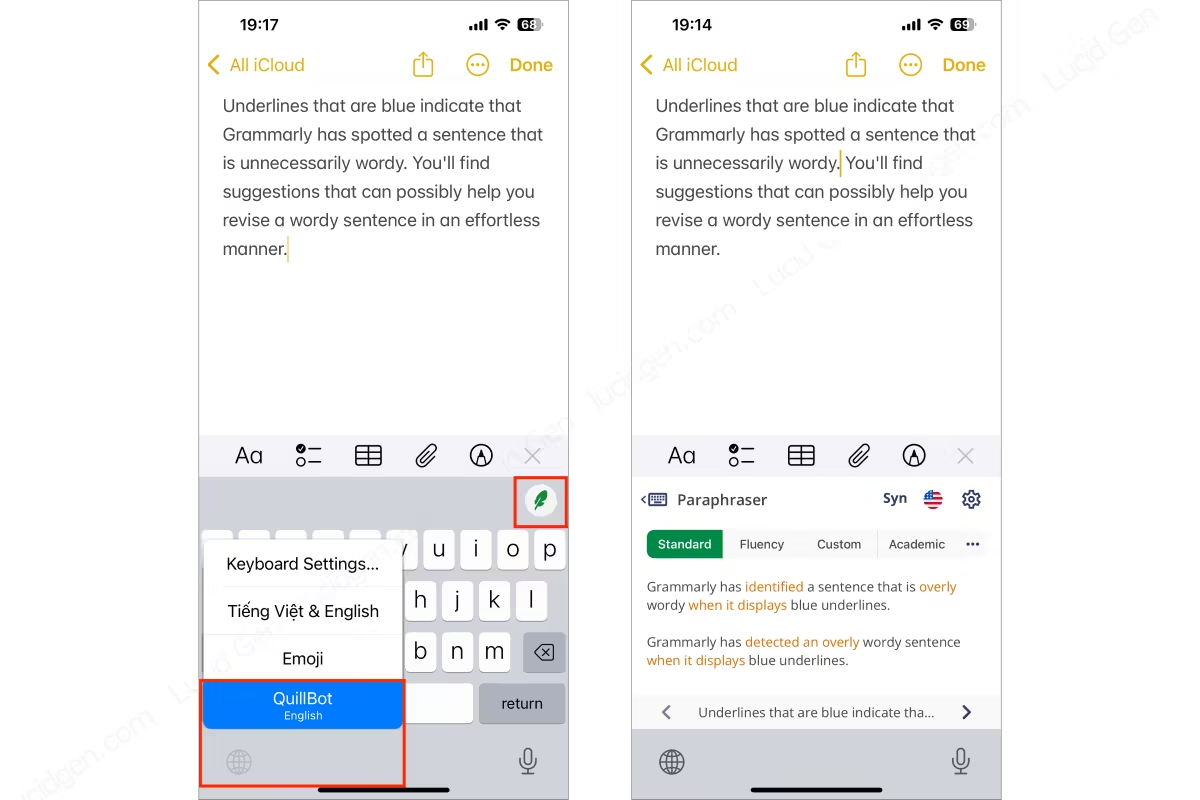
Step 2: Open the QuillBot keyboard. While typing, tap the globe icon to switch to the QuillBot keyboard, then tap the QuillBot icon on the keyboard to paraphrase what you have written.
Conclusion
This article has gotten quite long. I have covered how to use QuillBot on phones and computers fairly thoroughly, but there are probably still details I haven’t mentioned. Explore it yourself and share your thoughts on QuillBot in the comments below.


