

iPhone Mirroring is a great way to control your iPhone from your Mac. It lets you use iPhone apps on your Mac without any emulator software, by mirroring your iPhone’s screen to your Mac. To use it, you need macOS 15 or later and iOS 18 or later. If you’re ready, follow the steps below to try iPhone Mirroring.
Using iPhone Mirroring
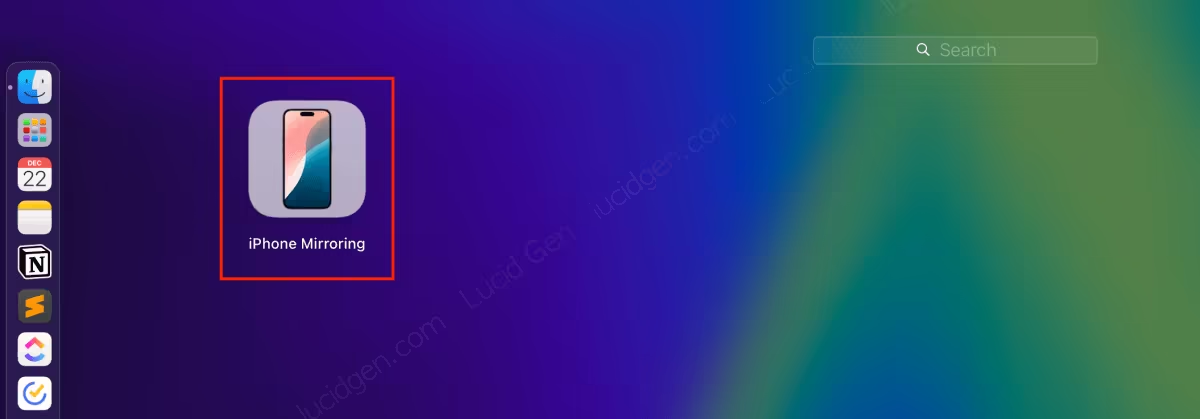
Step 1: Open the iPhone Mirroring app on your Mac. You can find iPhone Mirroring in Launchpad.
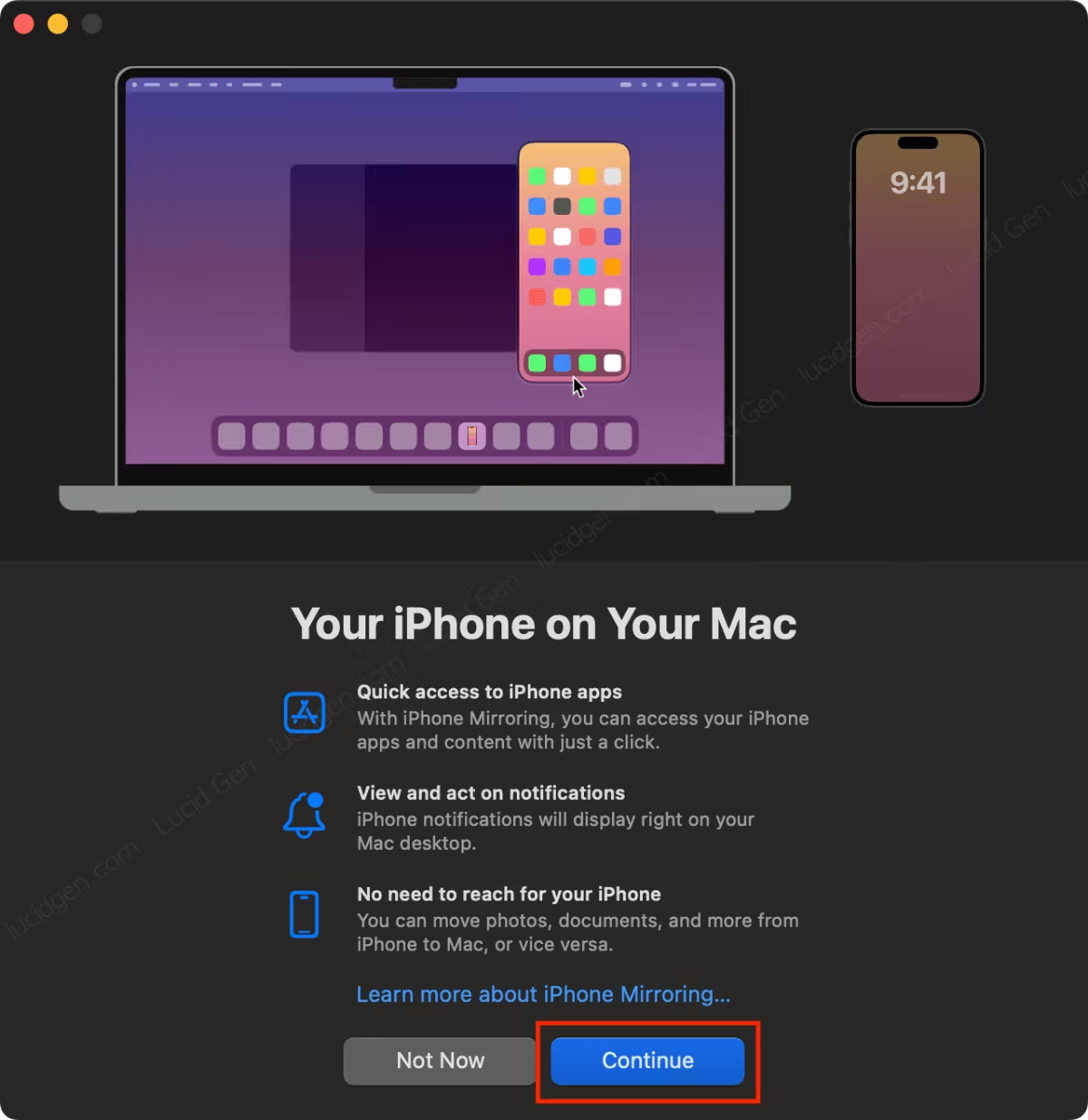
Step 2: Click the Continue button in the introduction window.
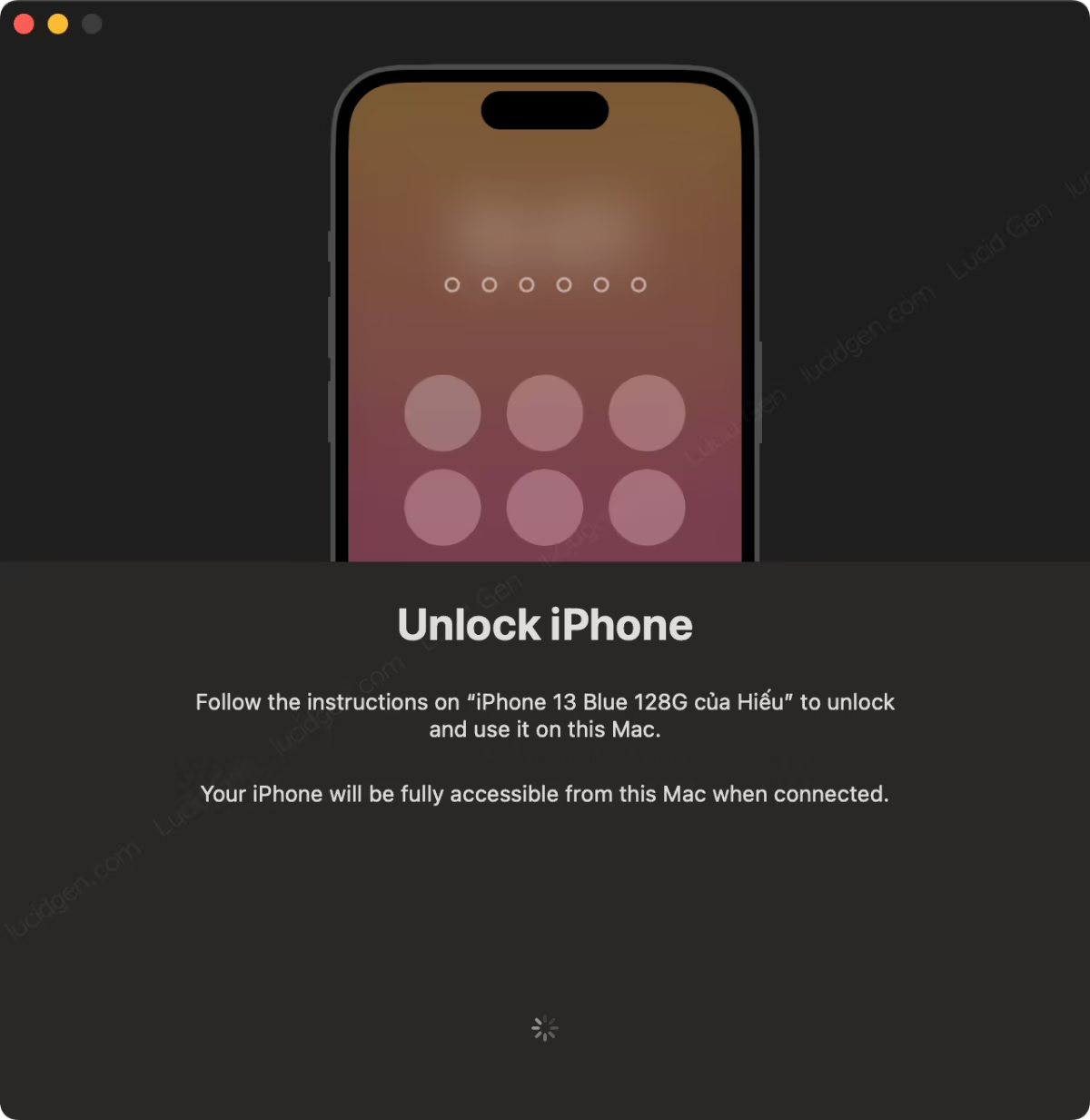
Step 3: Unlock your iPhone to allow your Mac to access it.
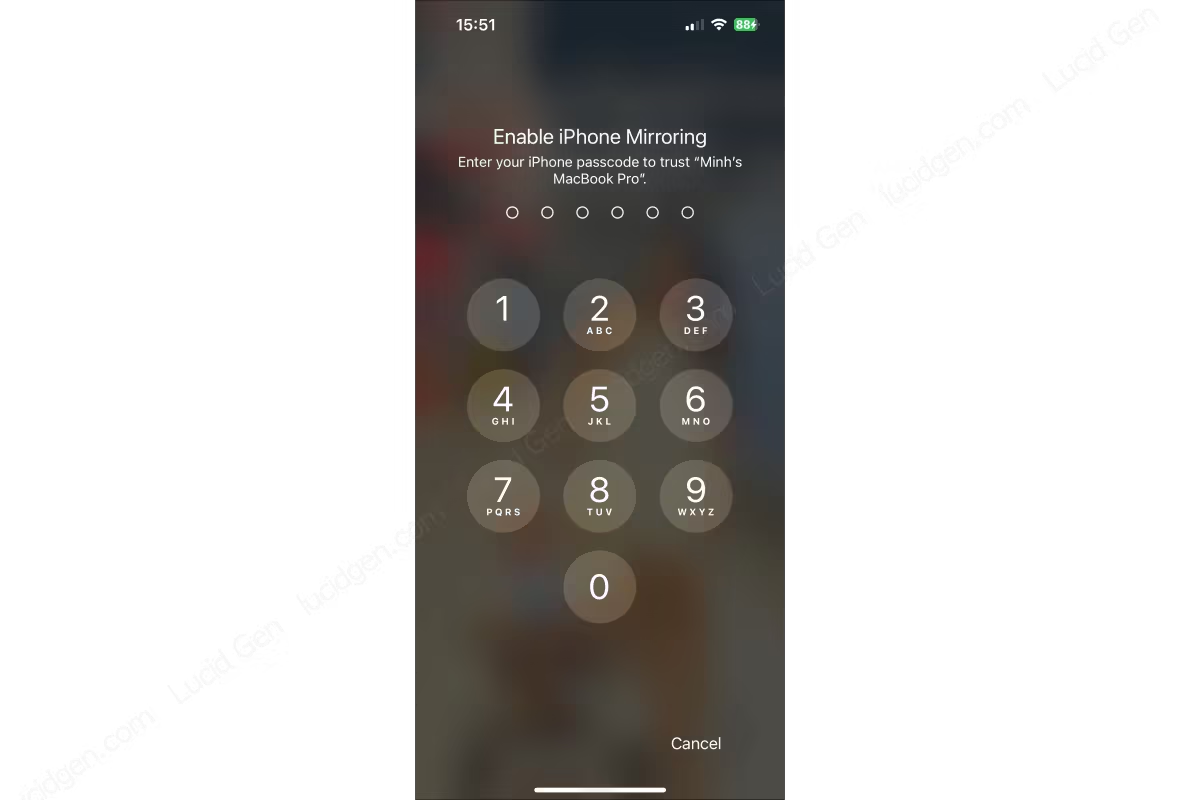
Pick up your iPhone and enter your passcode to turn on iPhone Mirroring.
Step 4: Allow your Mac to receive iPhone notifications while you use iPhone Mirroring.
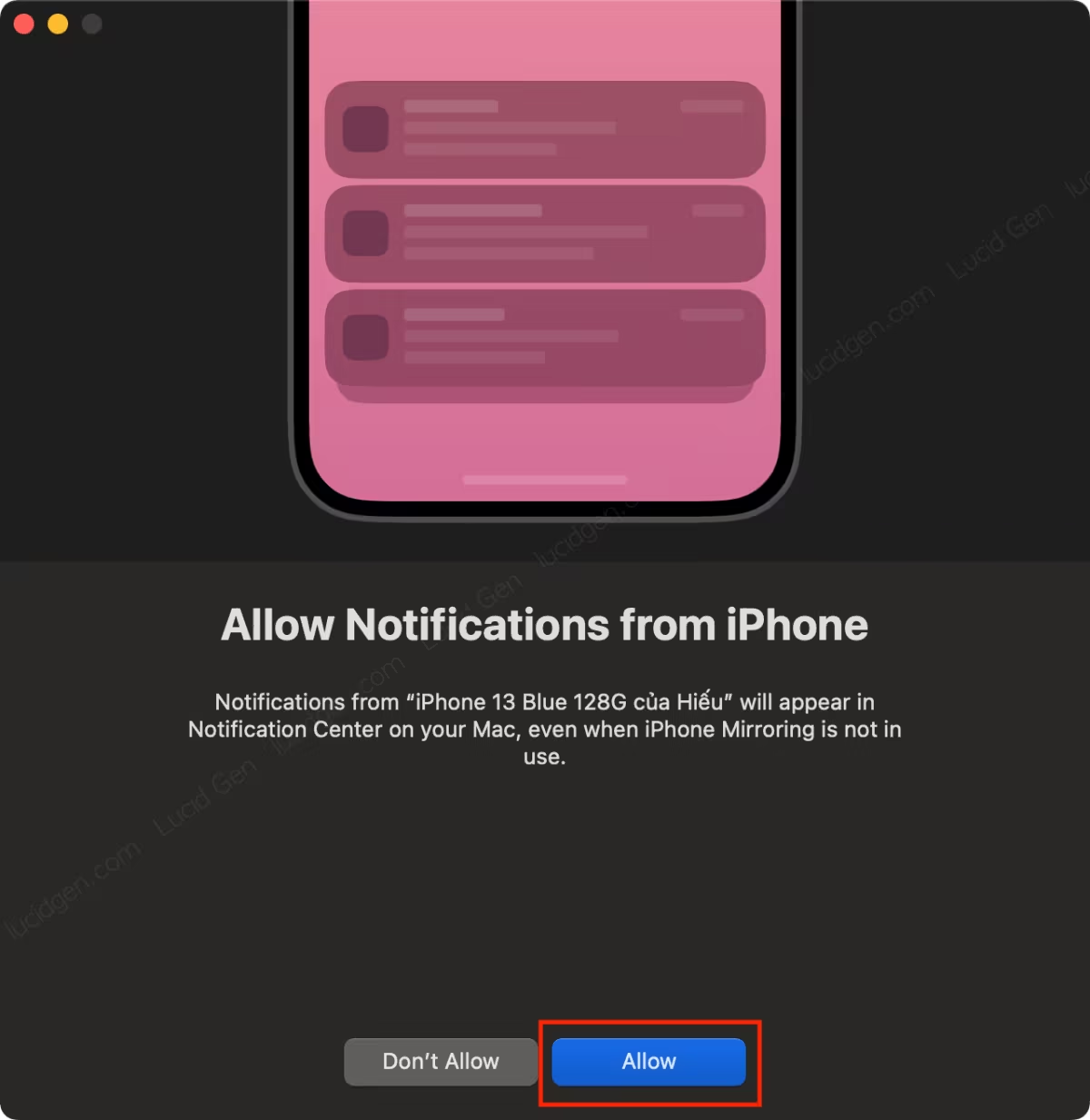
Step 5: Click the Get Started button and start using iPhone Mirroring.
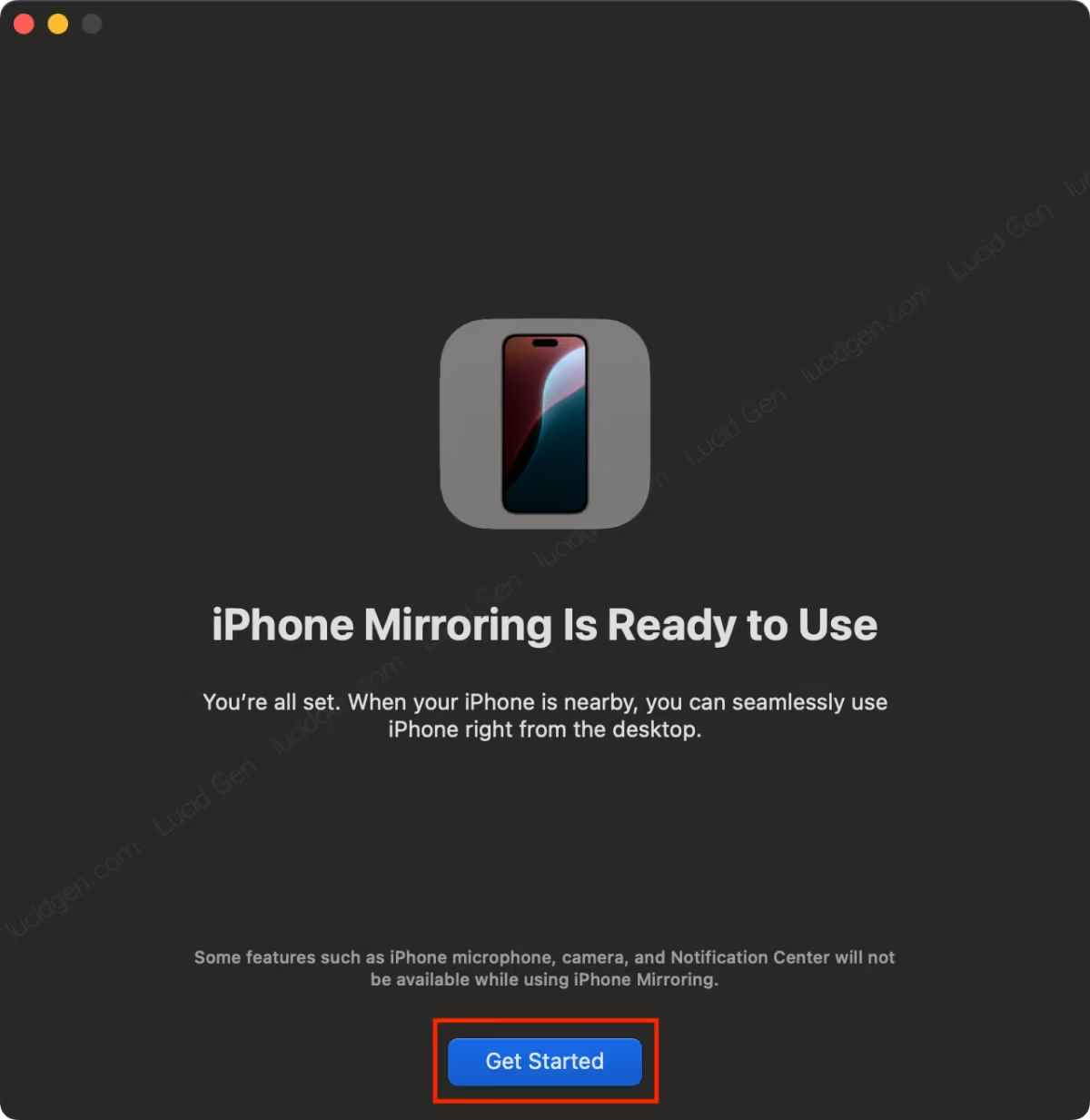
Here’s your iPhone screen on the Mac. When you hover over the top edge of the iPhone window, you will see the Home Screen and App Switcher buttons.
Some useful shortcuts:
- Command + 1: Open Home Screen.
- Command + 2: Open App Switcher.
- Command + 3: Open Spotlight.

Increase iPhone Mirroring Screen Size
I recommend setting the iPhone Mirroring window size to Larger for a better experience.
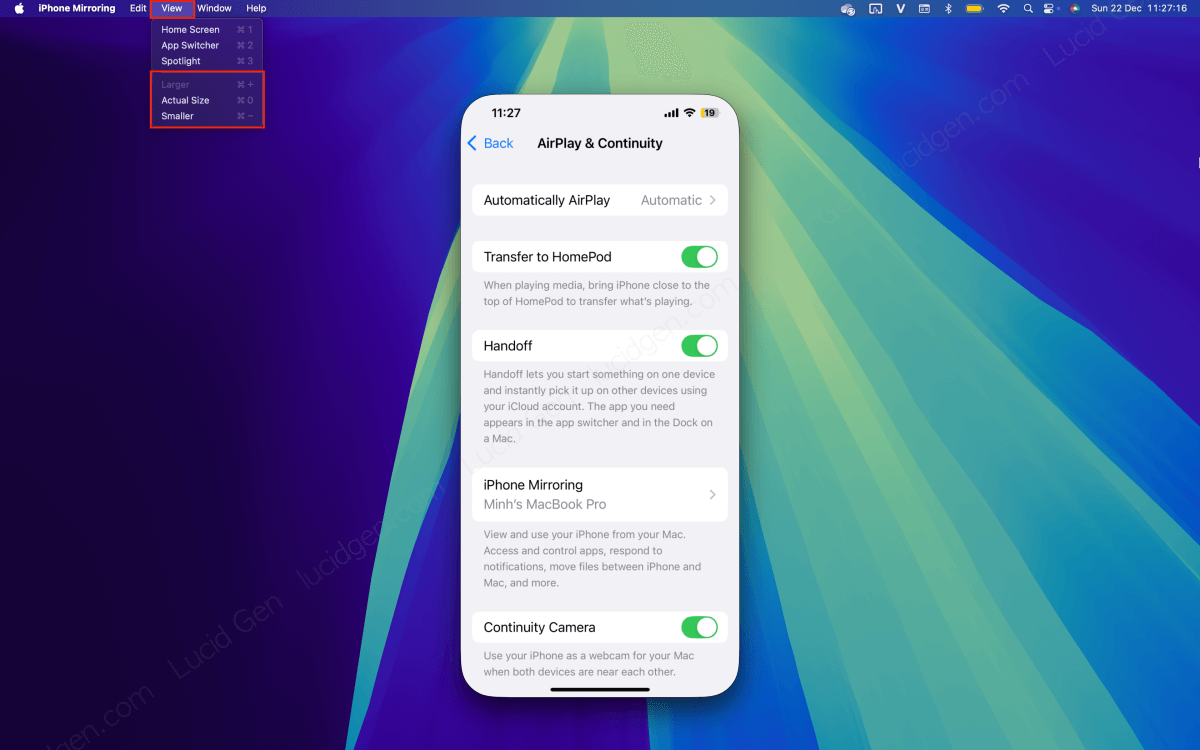
To change the window size, open the View menu and select the size you need. You can also use these keyboard shortcuts:
- Command + +: Increase iPhone Mirroring screen size to Larger.
- Command + 0: Return iPhone Mirroring screen size to default.
- Command + -: Reduce iPhone Mirroring screen size to Smaller.
Enable automatic authentication when Mac accesses iPhone
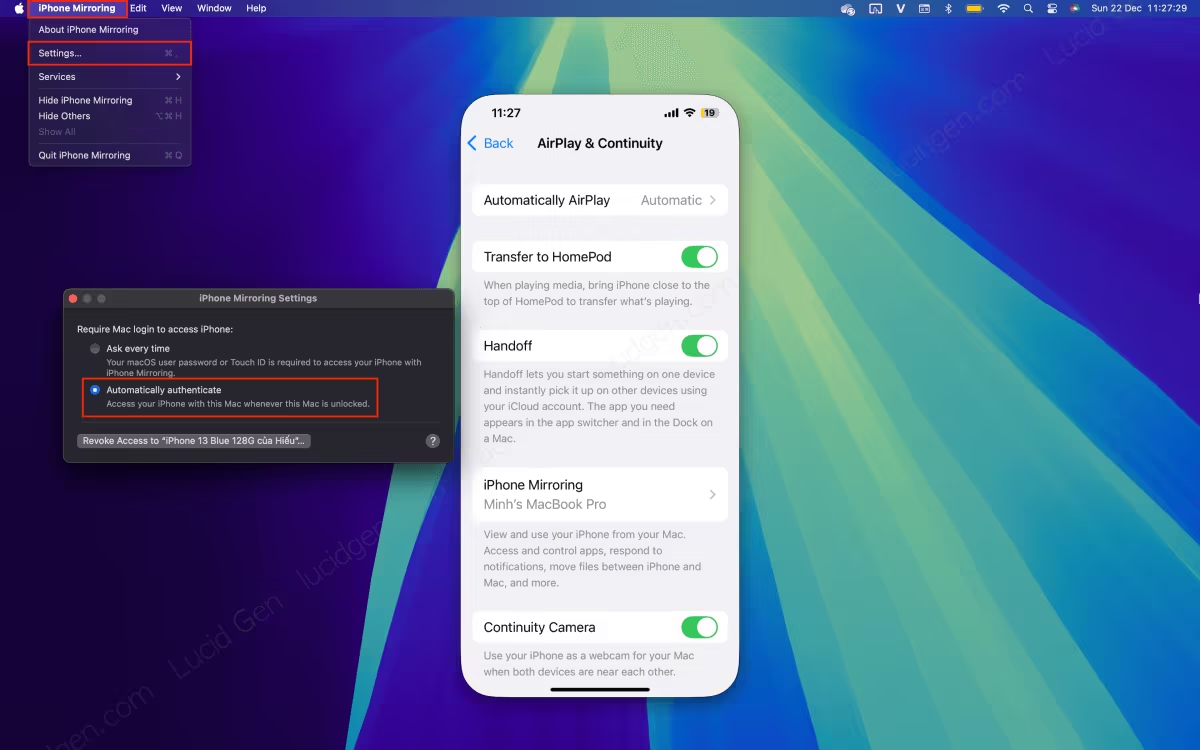
One more tip: if you use iPhone Mirroring often, set it to authenticate automatically. You will no longer need to enter your Mac password every time you open iPhone Mirroring.
To turn this on, open iPhone Mirroring Settings and select Authenticate Automatically.
Remove Mac from iPhone access list
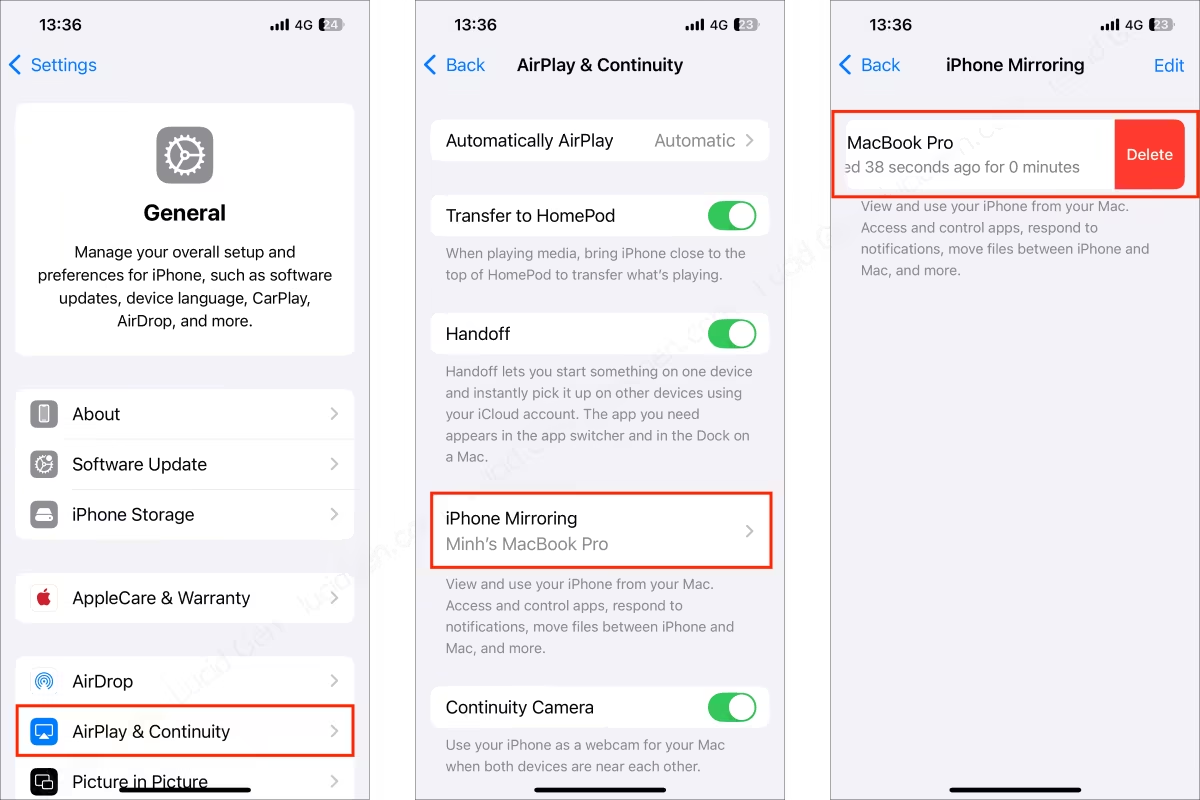
You can remove a Mac from the list of devices allowed to access your iPhone. Open the Settings app on your iPhone > General > AirPlay & Continuity > iPhone Mirroring, and swipe the Mac name to the left to remove it.
Conclusion
Those are the great things about iPhone Mirroring. However, it also has some drawbacks compared to Android emulation (as in the article on posting on Zalo from a computer): your iPhone has to stay locked, and you can’t use it while iPhone Mirroring is running. You also can’t control the iPhone remotely the way you can when controlling a Mac with an iPhone.
Still, iPhone Mirroring is a lifesaver for using iPhone apps on Apple silicon Macs, because emulating Android on a Mac used to be difficult since the M1 chip. It wasn’t until May 2025 that BlueStacks officially launched BlueStacks Air, an Android emulator built for Apple silicon Macs (M1 and later), but it focuses mainly on Android gaming (10/2026). If you need to use the apps on your own iPhone, iPhone Mirroring is still more convenient.


