

Browsing Google Drive forums, I see many people who want to transfer ownership of a Google Drive folder, including all its subfolders and files, but cannot find a solution or end up paying for a third-party tool. In this article, I will show you two official ways to transfer ownership of a folder and the files inside it on Google Drive.
Things to know before you start
You can only transfer Drive ownership to members of the same organization (domain).
Here is an example to make it clearer. Files or folders owned by an @gmail.com account (a regular account) can only be transferred to another @gmail.com account. Likewise, files and folders owned by an @lucidgen.com account (a Google Workspace account) can only be transferred to another @lucidgen.com account.
How Google Workspace and regular Gmail accounts differ when transferring Google Drive ownership:
| Feature | Google Workspace | Gmail |
|---|---|---|
| Who can receive ownership | Accounts in the same Google Workspace. | Regular Gmail accounts. |
| When it takes effect | Ownership changes immediately. | Only an ownership invitation is sent; the recipient must accept it. |
| Can it be canceled? | No. | Yes, as long as the recipient has not accepted yet. |
Transfer ownership of a Google Drive folder
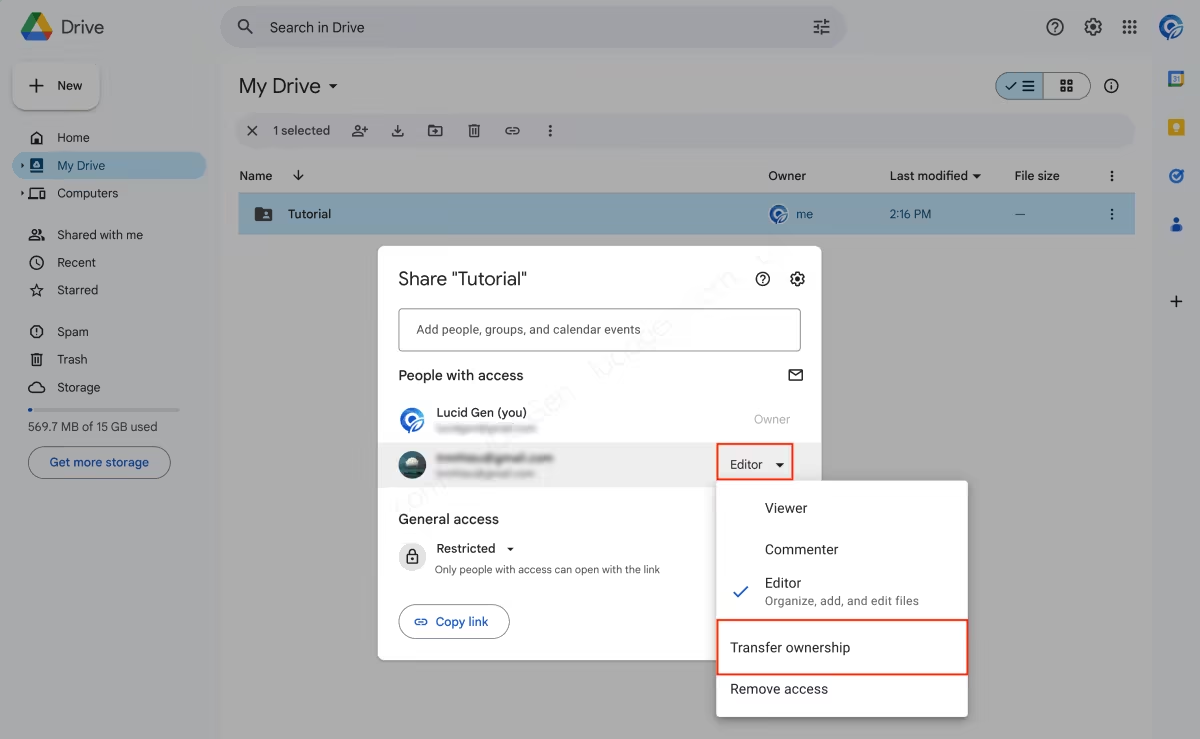
Step 1: Select a folder and change the recipient’s role from Editor to Transfer ownership.
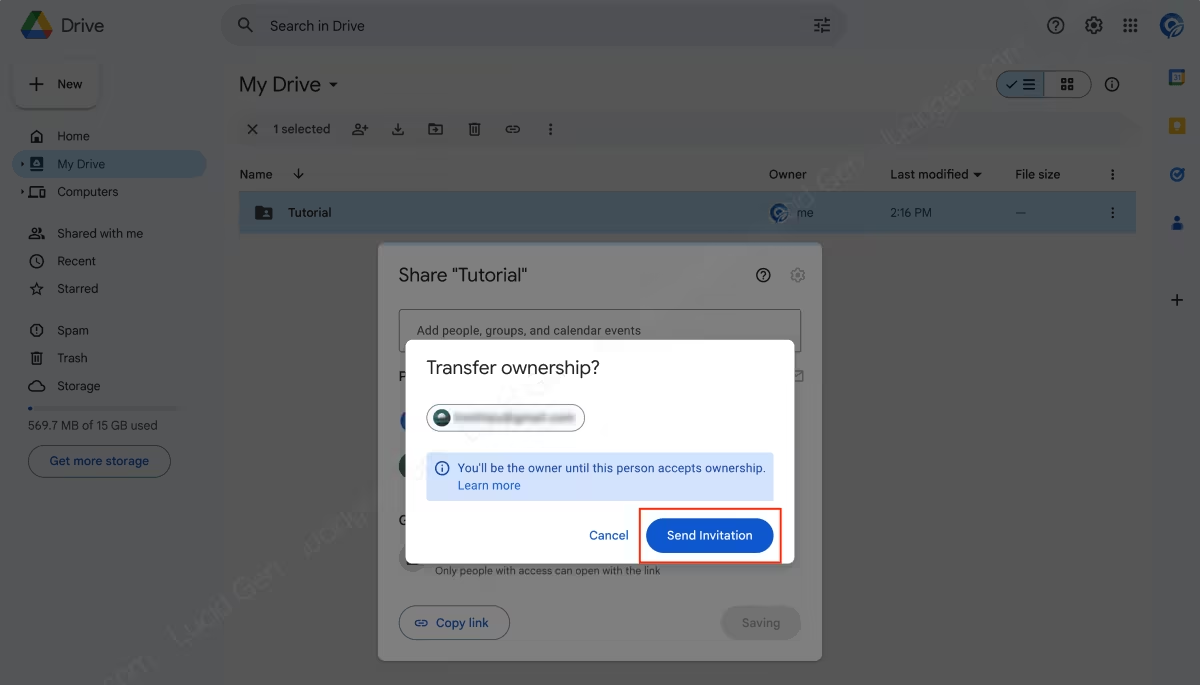
Step 2: Send an invitation to transfer ownership of the Google Drive folder. Click the Send Invitation button.
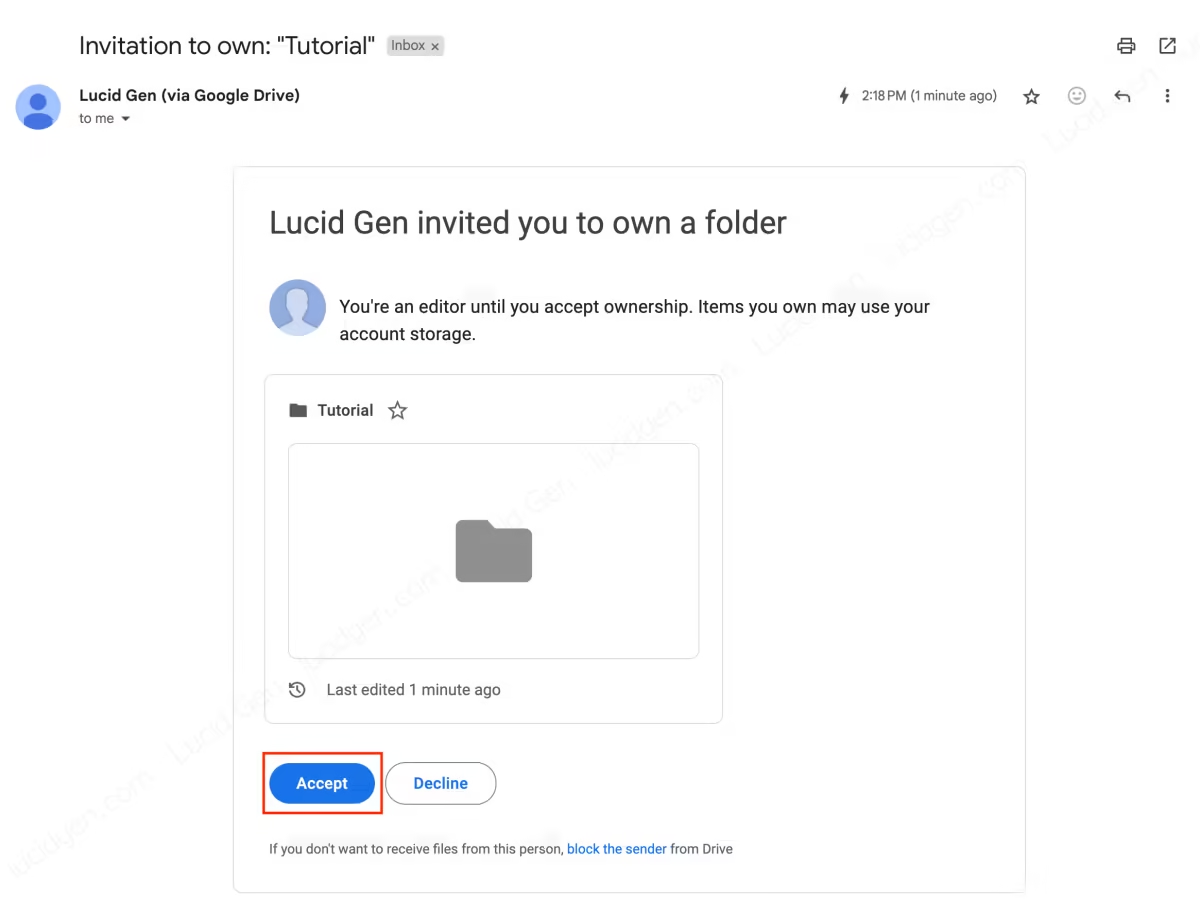
Step 3: If the account is not a Google Workspace account, the new owner needs to accept the invitation. They click the Accept button to become the owner of the file.
With Workspace accounts, ownership is transferred immediately without the recipient having to accept.
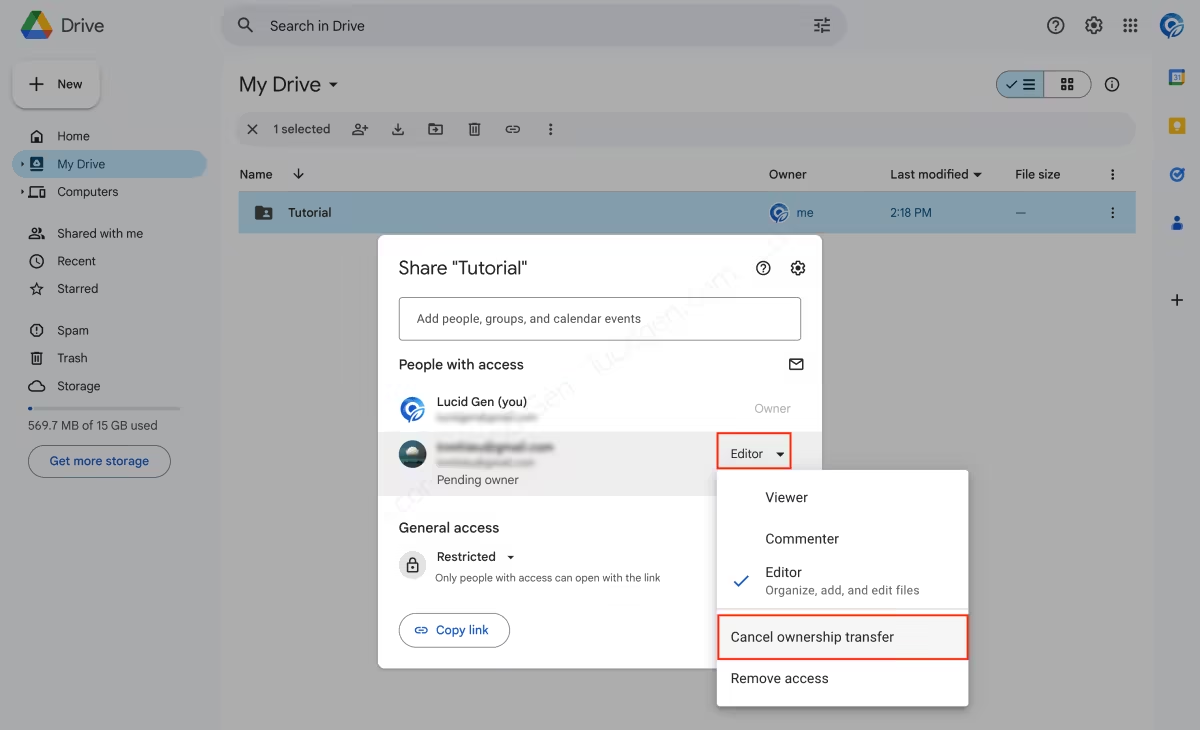
If you want to cancel the ownership invitation, change the role from Editor (Pending owner) to Cancel ownership transfer. Only Gmail accounts can cancel an ownership invitation, and only before the recipient accepts it.
Transfer ownership of multiple files on Google Drive
This method lets you transfer ownership of multiple files on Google Drive at once. You can use it to transfer the files inside a folder.
Step 1: Select multiple files and share them to transfer ownership of all of them.
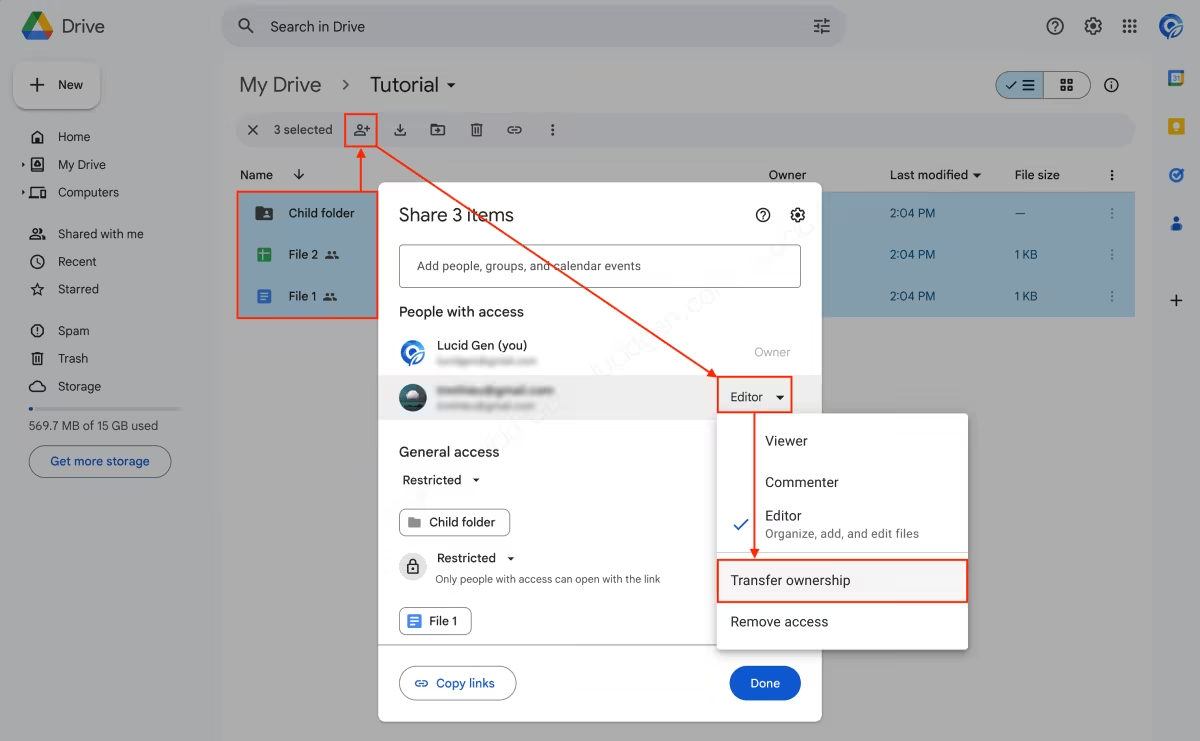
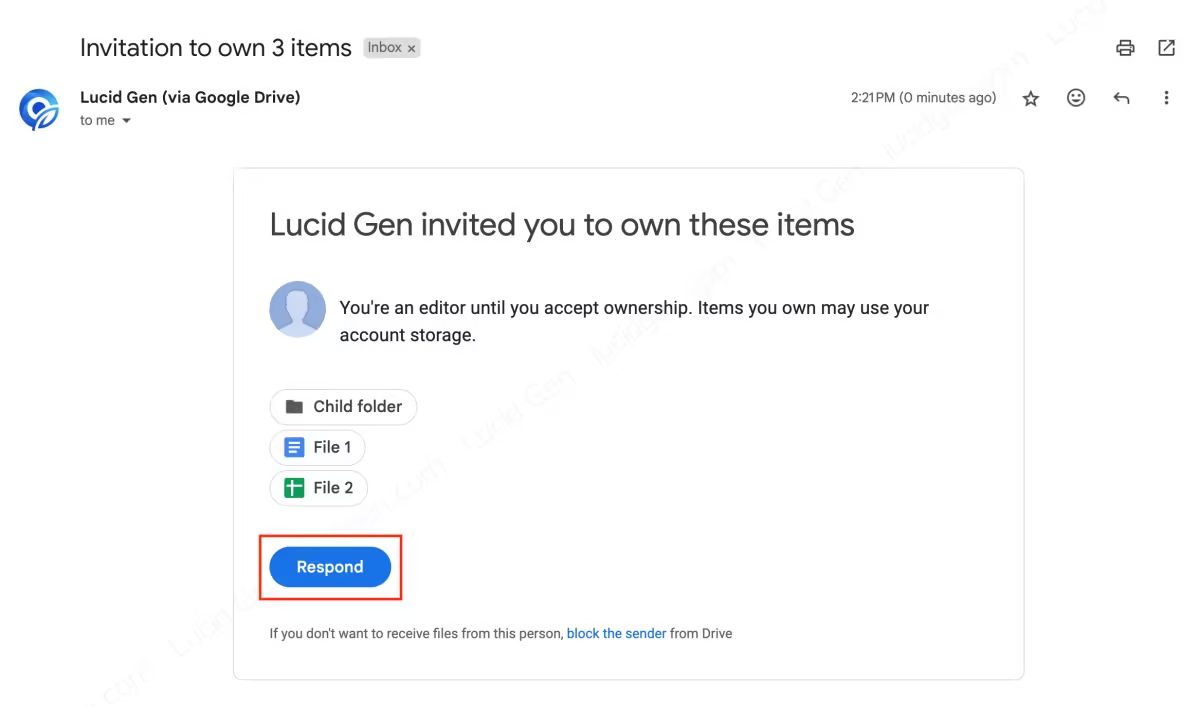
Step 2: If the account is a regular Gmail account, the new owner must accept the invitation. They click the Respond button to reply.
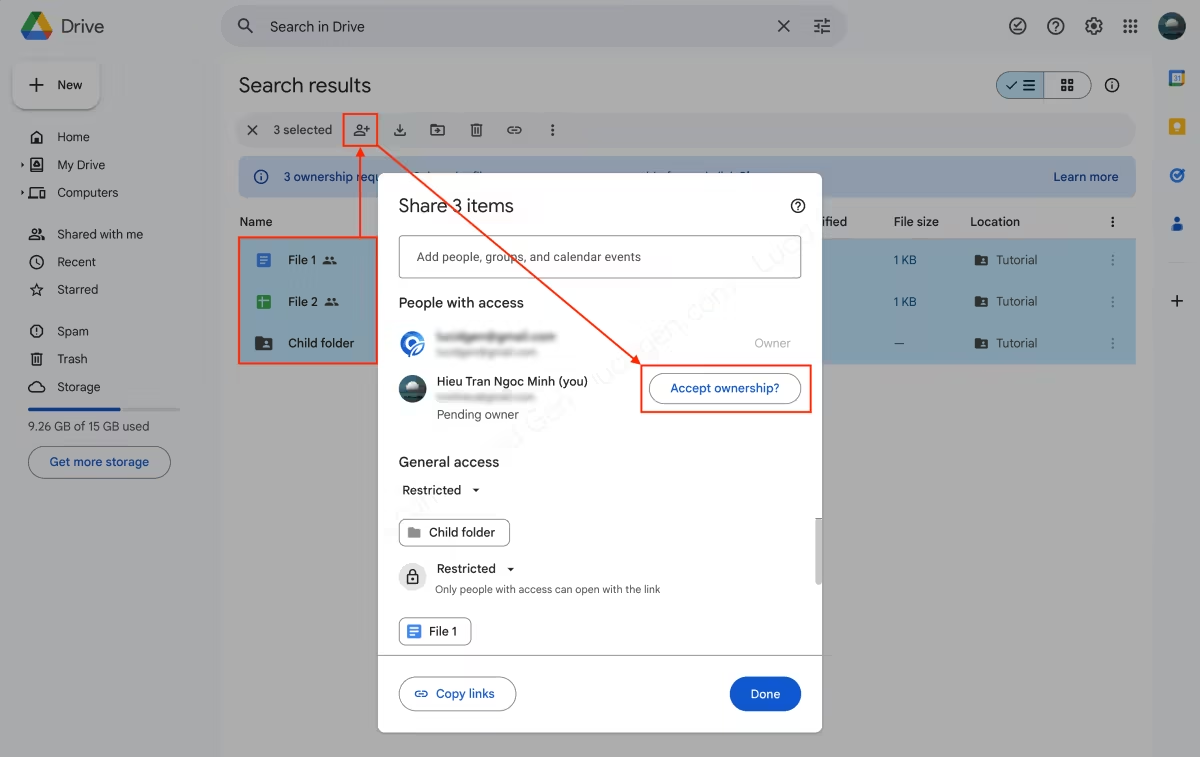
Select all the files, click the Share button, and click Accept ownership to accept or decline the invitation.
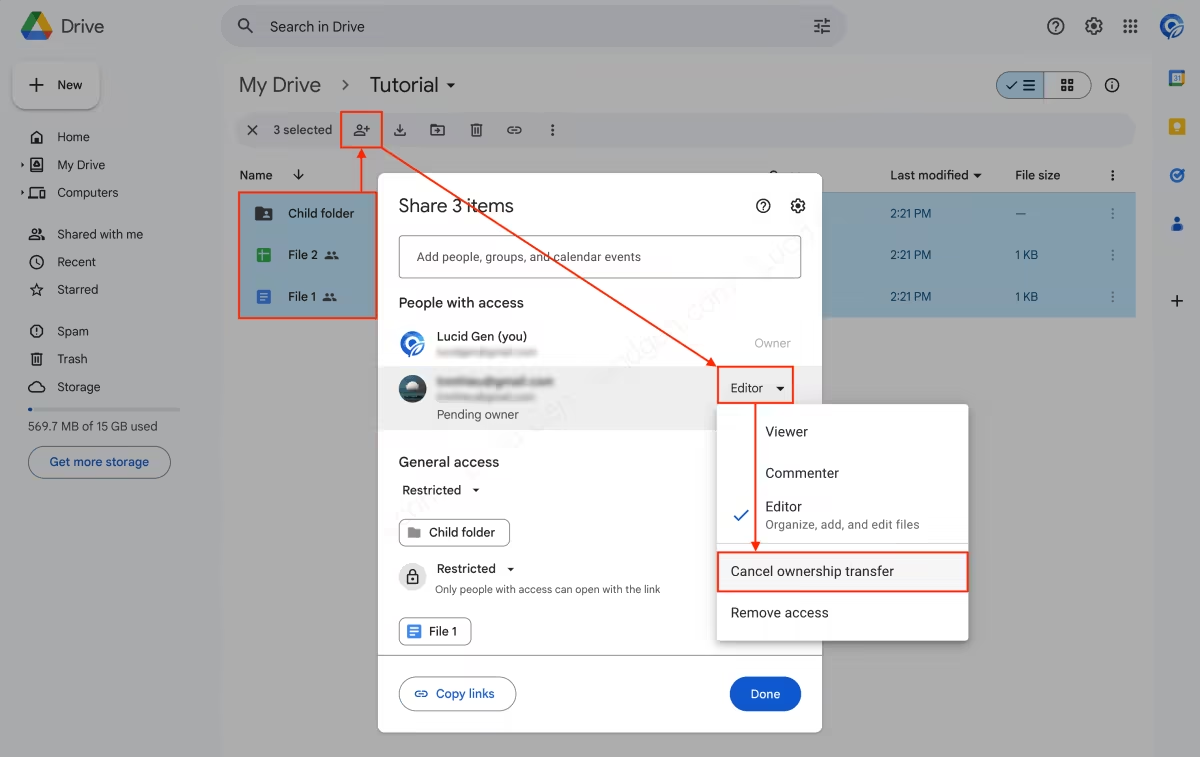
To withdraw an ownership invitation for multiple files on Google Drive, select all the files, click the Share button, and change the role from Editor (Pending owner) to Cancel ownership transfer.
With these two official methods, you can transfer ownership of a folder and the files inside it. Feel free to leave a comment below if you need more help.


