

To work with Google’s APIs, you need to create a Service Account in Google Cloud Platform and download a JSON file containing the account details. After creating the account, you just need to enable the Google Cloud APIs you need, and you can start using the Service Account in your apps and Python code. Follow the steps in this article to get started quickly.
What is a Service Account?
A Service Account is a special type of account that is often used to call APIs from apps and code. It is authorized to act on behalf of the main user of the Google service, so it can do many tasks for you in the Google products you use.
| Password | None. It can’t sign in with a browser or cookies. |
| Authentication | Uses public/private RSA key pairs instead of a password. |
| Authorization | Can be granted permissions like a user account. |
| Google Workspace | Not counted as a user when sharing assets in Google Workspace. |
Create a Service Account
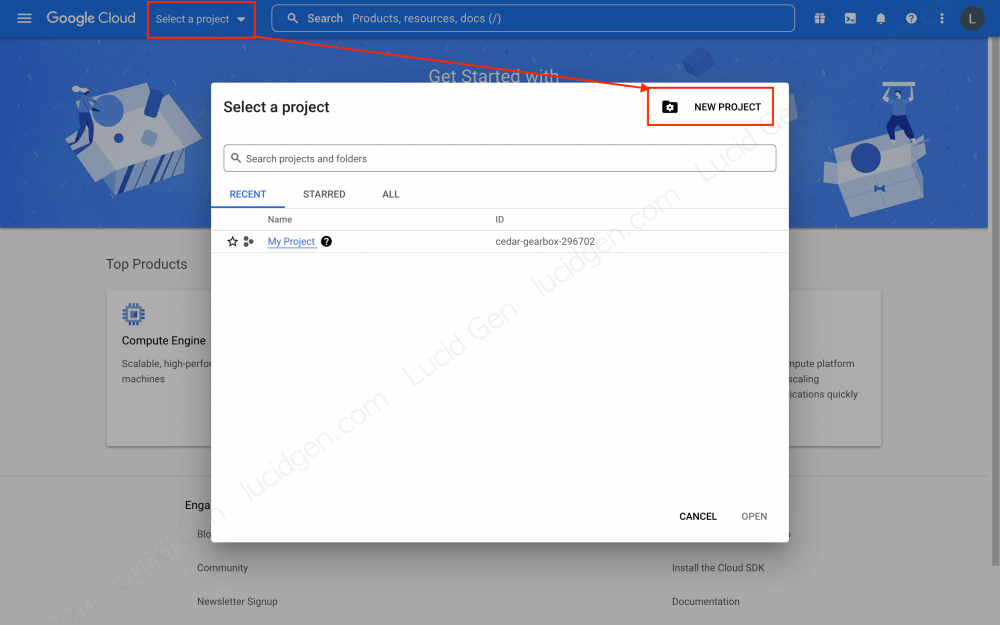
Step 1: You need to create a Project to contain one or more Service Accounts. Go to console.cloud.google.com/projectcreate to create a new Project.
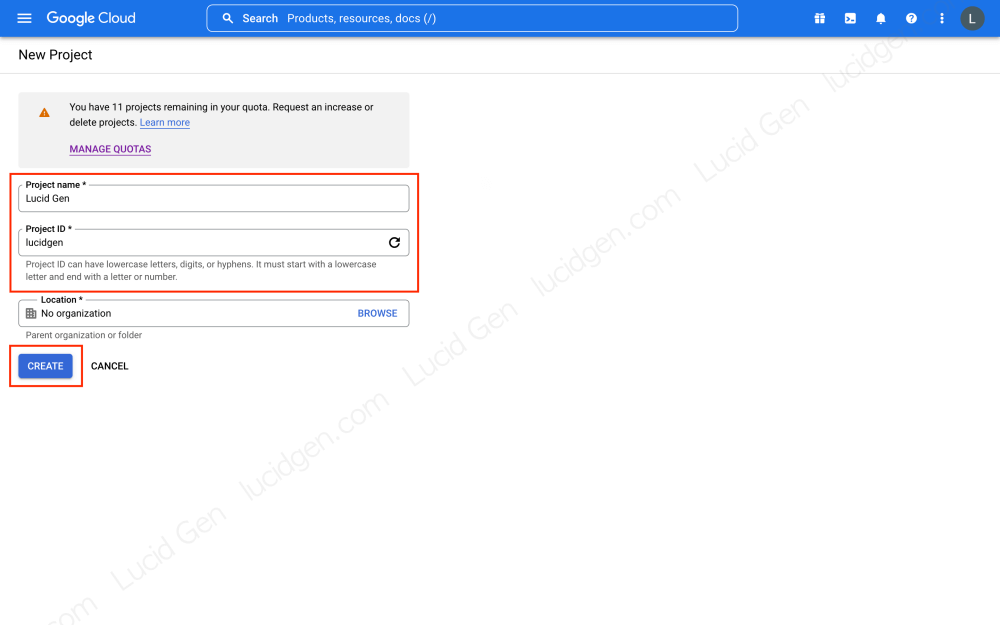
Step 2: Fill in the basic information for the Project. Note that the Project ID is permanent and can’t be changed later. If you don’t have a Location, just leave it as No organization.
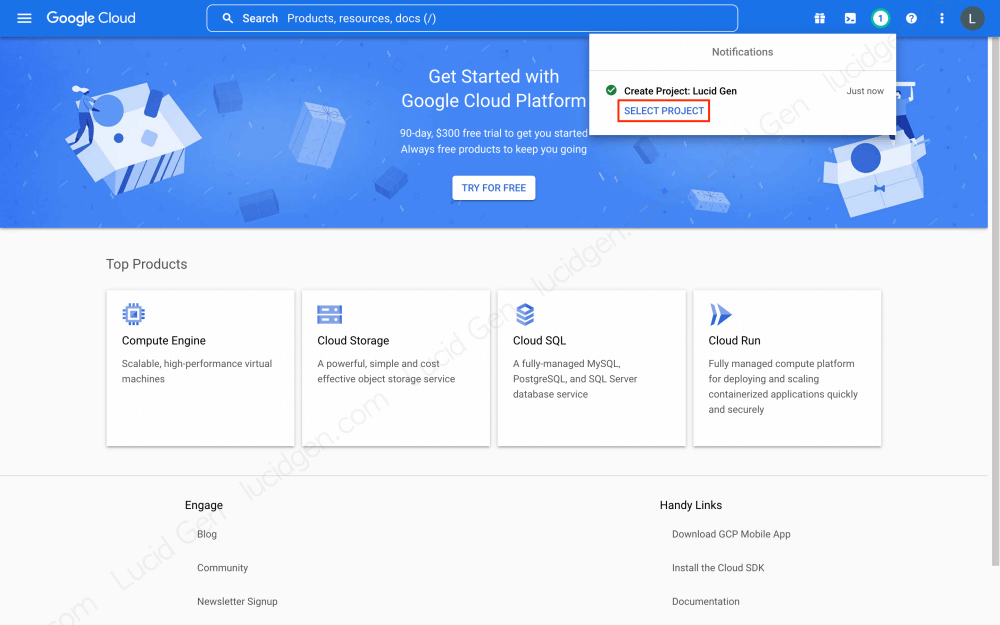
Step 3: After creating the Project, make sure you select the Project you want to create the Service Account in.
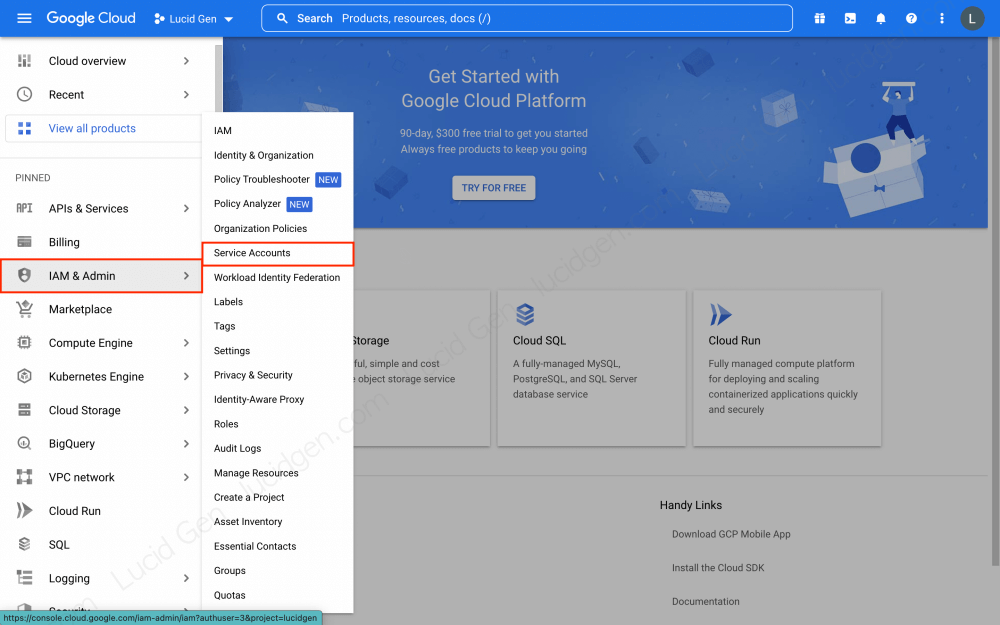
Step 4: Open the Service Account management page by clicking IAM & Admin > Service Accounts.
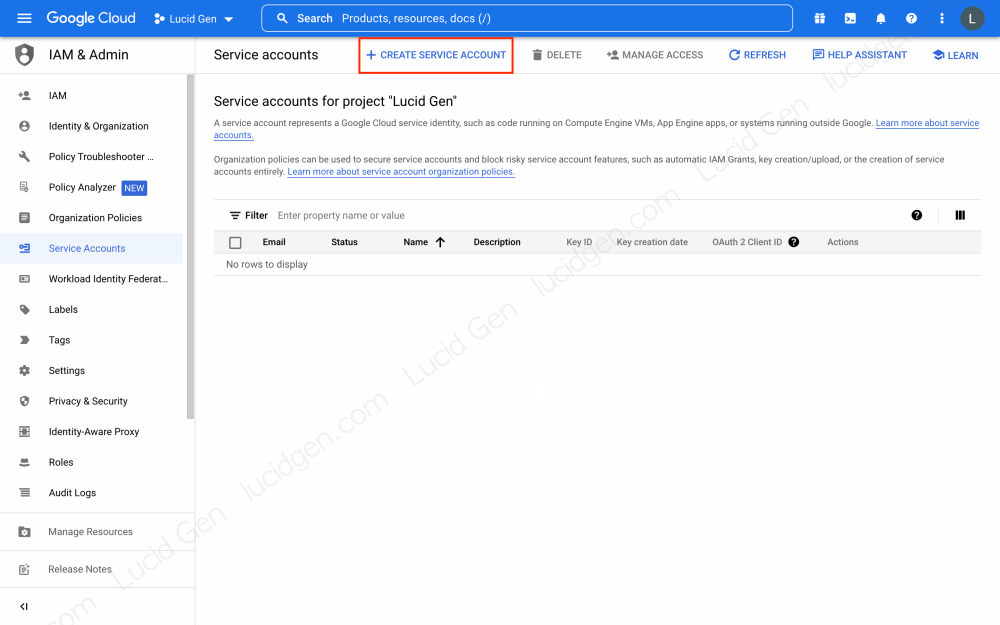
Step 5: Click the Create Service Account button.
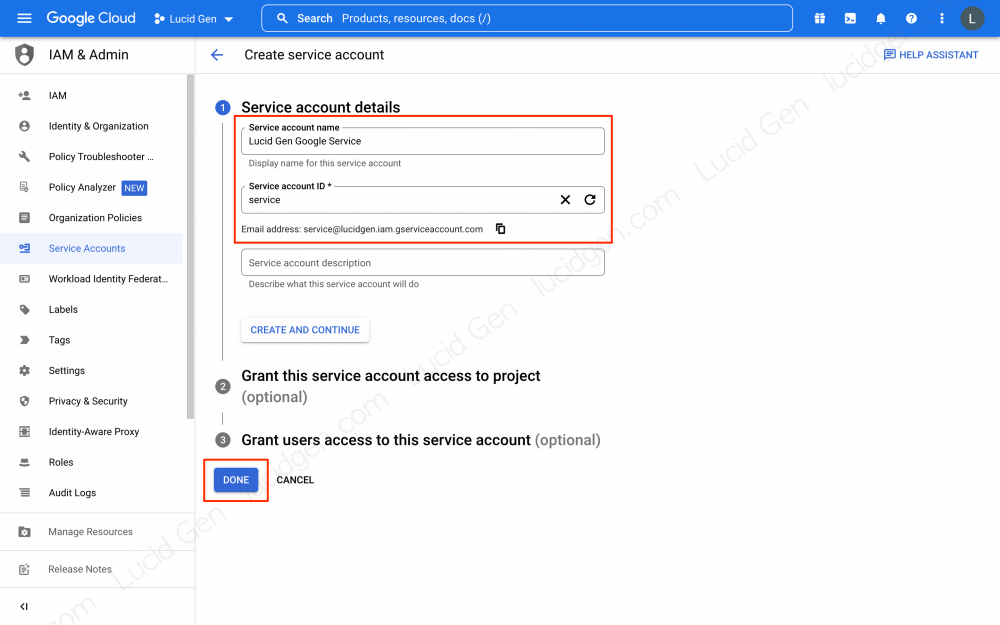
Step 6: Fill in the details for the Service Account. Keep the Service account ID short and readable, because it becomes an email address you’ll use a lot later. When asked to grant roles, skip this step and don’t give it the Owner role. To read and write Google Sheets or Google Drive files, the Service Account doesn’t need any project role; it only needs to be shared on the specific files. This follows the principle of least privilege: if the JSON key file ever leaks, the attacker can only reach the files you shared, not your whole Google Cloud project.
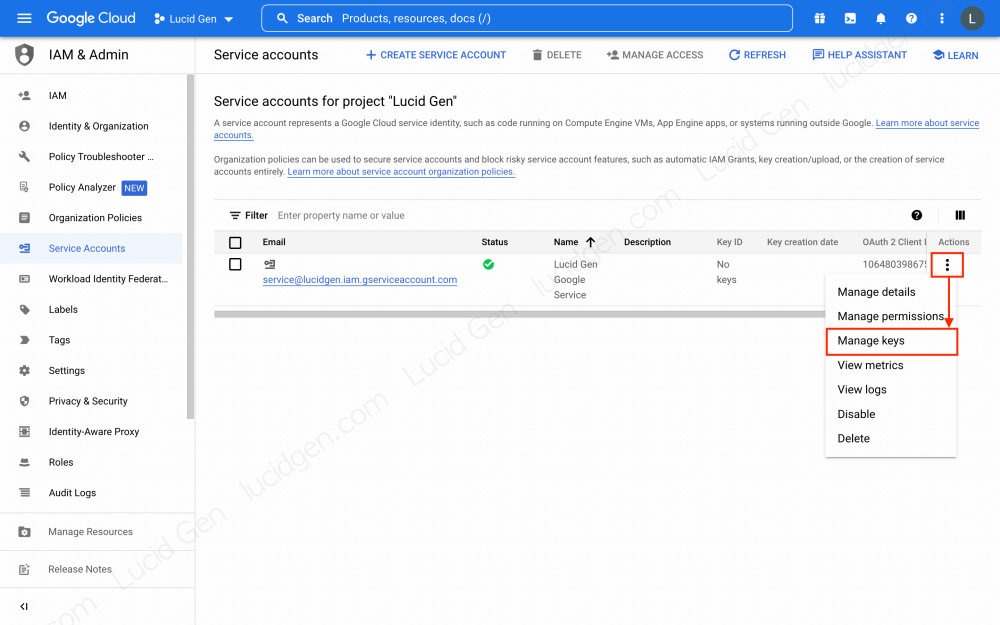
Step 7: Open Manage keys for your Service Account by clicking the options button (three dots). This is where you create the JSON file containing the account credentials.
Step 8: Click Add Key and select Create new key to generate a private key.

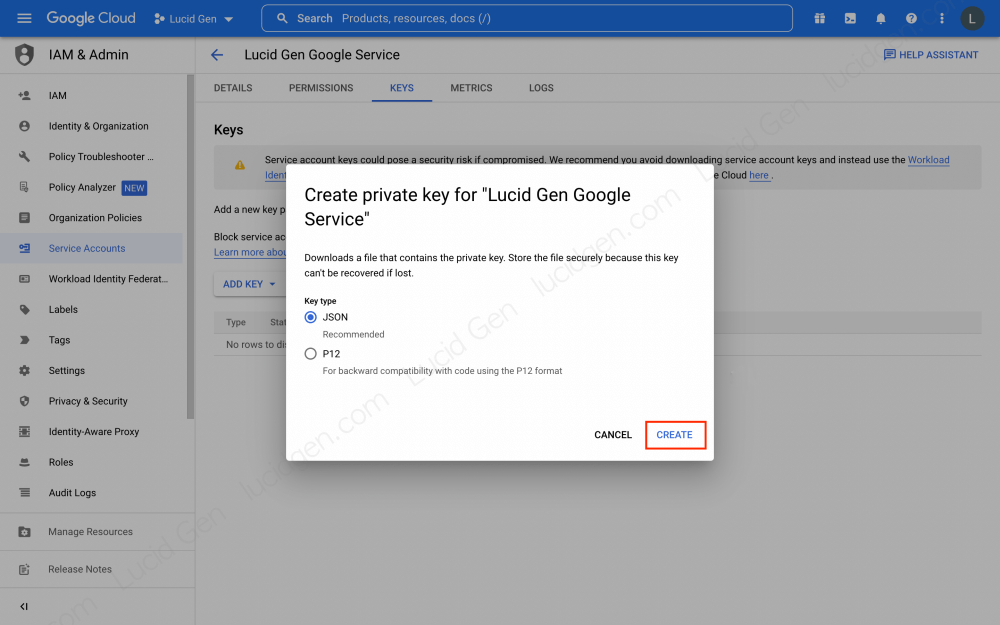
Step 9: Select JSON and click Create to create a JSON key file for your Service Account.
Step 10: Your browser will download the JSON file to your computer right away. Click Close to finish.

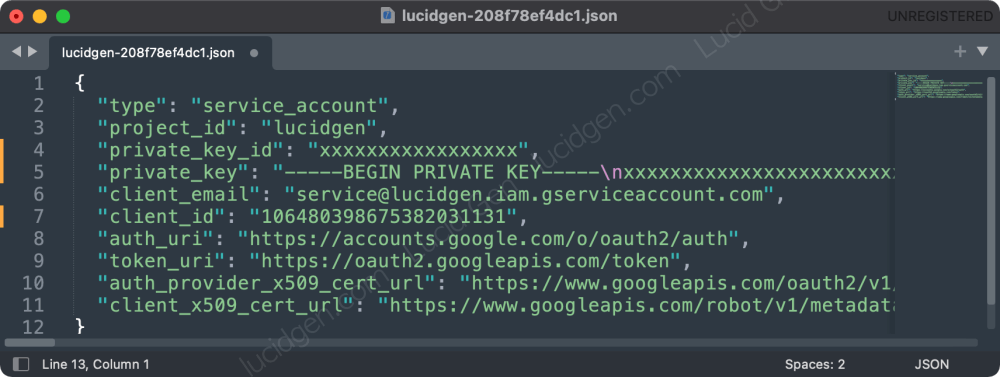
Here is an example of what the JSON file looks like. It contains the credentials for your Service Account, so treat it like a password: don’t send it over chat, commit it to GitHub, or leave it in a public folder. If you think it has been exposed, delete that key and create a new one. If you use Python, you can create a dictionary variable with exactly the same content as this JSON file to work with Google’s APIs.
Enable Google Cloud APIs
Once you’ve created a Service Account, you need to enable the APIs it will use, so that your API calls work.
Step 1: Open the Google Cloud API library by clicking APIs & Services > Library.
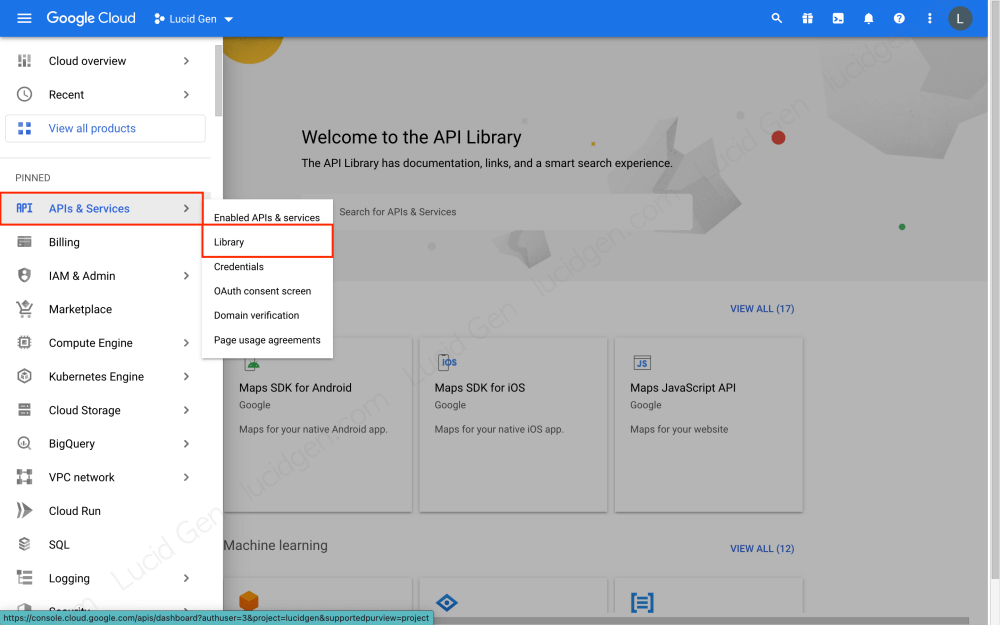
Step 2: Search for the APIs you want to use. Each API’s description explains what it does. Here are a few popular examples.
- Google Drive API: Lets you create files, manage file sharing, and search for files and folders.
- Google Sheets API: Lets you read and edit the content of worksheets.

Step 3: Enable the API you selected.

Step 4: The overview page shows the usage data for the API. You can turn an API off by clicking the Disable API button.

Finally, depending on how you use the API, you may need to give this Service Account edit access, for example to a Google Drive folder or a Google Sheets file. The Service Account’s email is the client_email value in the JSON file on your computer. Share only the files or folders it actually needs, with Editor access if it has to write data or Viewer access if it only reads.

Frequently asked questions
Why do I still get errors when calling an API that is already enabled?
Some APIs only work if you give edit access to the client email. Check whether you’ve shared the file or folder with the Service Account’s client email.
What should I do if I lose the Service Account JSON file?
You can’t download the JSON file with an existing private key again. However, you can delete the old key and create a new one.
Conclusion
I hope this article helps you create a Google Service Account quickly and smoothly. I’m still learning and working with Google Cloud myself, and I hope to share more of my experience with you in the future. Feel free to leave a comment below if you have questions or just want to chat.


Clear and actionable guide! This tutorial simplifies creating a service account and enabling Google Cloud APIs with step-by-step precision excellent work!
Hello Peol, thank your for feedback!