

There are two types of computer users in the world: the ones who help and the ones who need help. For the two to connect, they need to install TeamViewer on Mac, Windows, or even their phones (well, there are a few other apps too). Installing TeamViewer on Windows is pretty easy, and the store often pre-installs it when you buy a new computer. On Apple devices, after downloading and installing TeamViewer on your MacBook yourself, you also have to grant it permissions before it works. Follow this guide to get TeamViewer working on your Mac!
| Application | TeamViewer 15 and up |
| Chip | M1, M2, Intel |
| Permissions required | Screen Recording and Accessibility |
How to download TeamViewer for Mac
There are several ways to download TeamViewer; just make sure the link is official. Choose one of the links below. The downloaded file will have a .dmg extension.
- Link 1: https://www.teamviewer.com/en/download/mac-os/
- Link 2: https://download.teamviewer.com/download/TeamViewer.dmg
- Link 3: http://download.teamviewer.com/
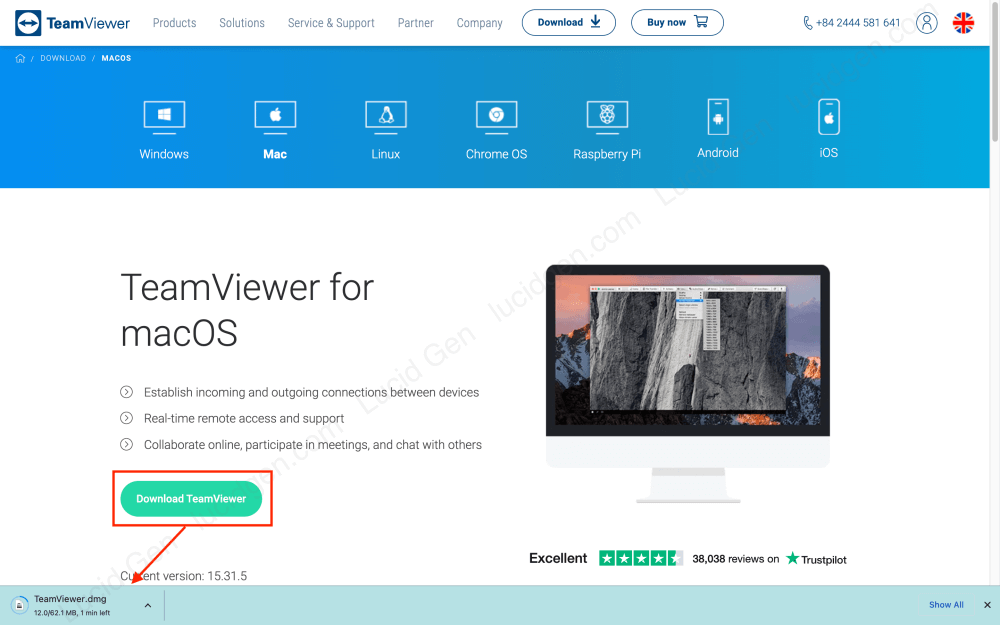
How to install TeamViewer on Mac
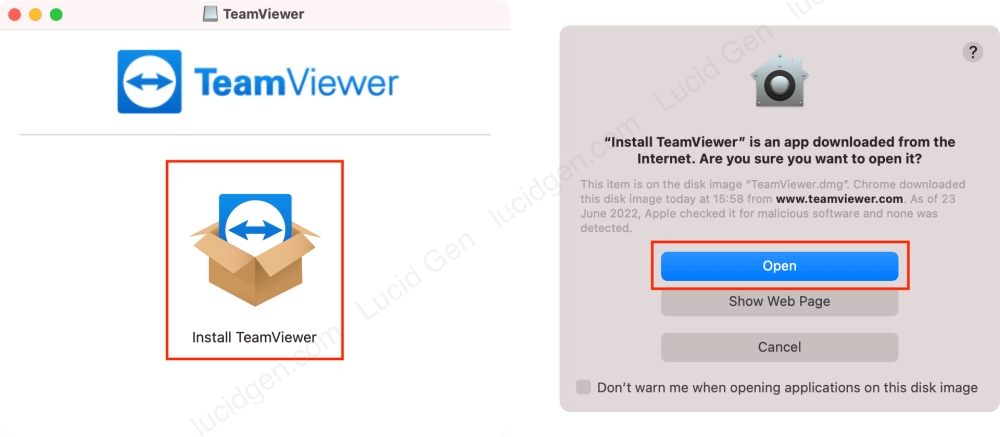
After downloading TeamViewer, follow these steps to install it on your Mac.
Step 1: Open the TeamViewer.dmg file and double-click the Install TeamViewer icon. If there is a confirmation dialog box, select Open.
Step 2: Check the box I accept the EULA and the DPA, then select Continue. If a dialog asks for permission to access the Downloads folder, select OK.

Step 3: In the TeamViewer installer, leave the default options and click Continue. If a confirmation dialog appears, enter your password or use your fingerprint (depending on your Mac).

Step 4: When the installation finishes, click Close. If a dialog asks whether you want to delete the TeamViewer installer, select Move To Trash.

Step 5: Create a TeamViewer account or sign in to your existing one. In the past, you could use TeamViewer without an account, but now you have to sign in.

Step 6: Sign in to your TeamViewer account, and remember to check Keep me signed in so you don’t have to sign in again next time.

You can now connect to and control other people’s computers using their Partner ID. But if you want others to control your computer, you need to grant TeamViewer some extra permissions. Here is how.
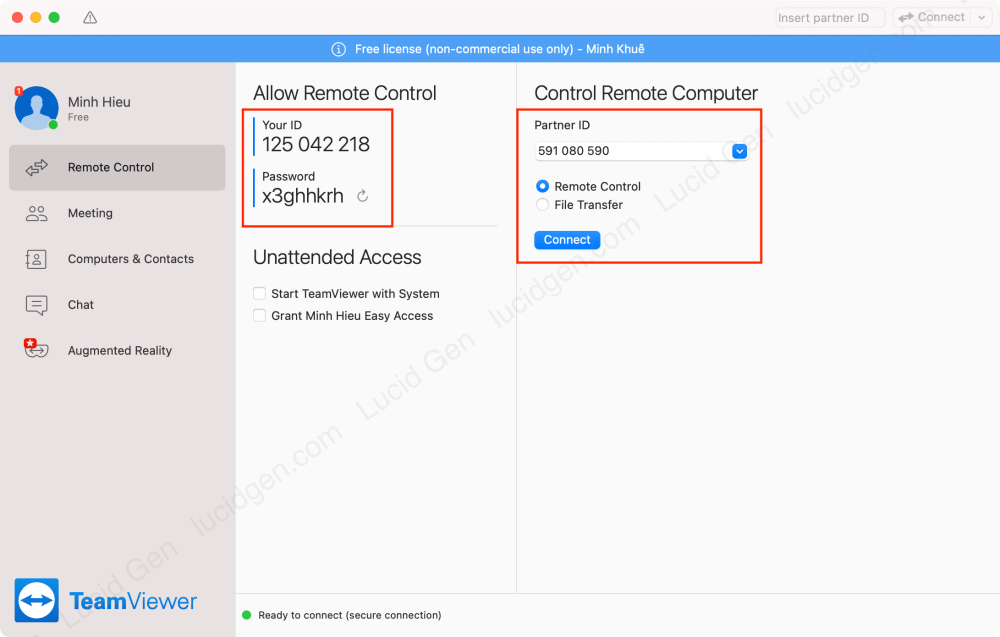
How to allow TeamViewer access on Mac
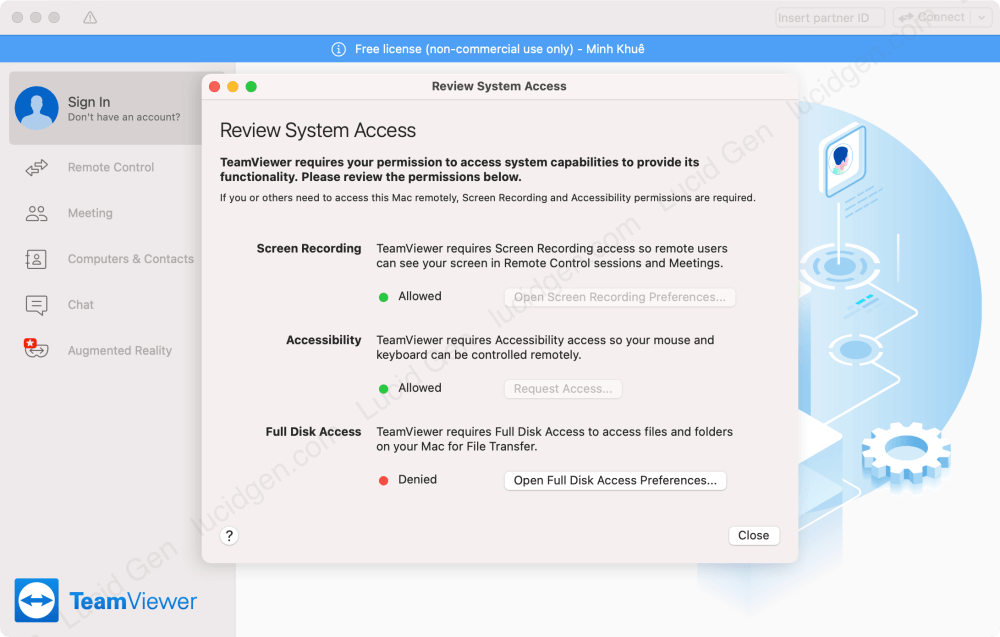
You need to grant TeamViewer permissions on your Mac if you want someone else to control your computer. We will give TeamViewer the Screen Recording and Accessibility permissions.
- Screen Recording: This is the Mac’s screen recording permission. It lets the person controlling your computer see your screen.
- Accessibility: This permission lets the person controlling your computer use the mouse and keyboard on your Mac.
Step 1: Click the exclamation mark button at the top of TeamViewer > click Request Access for both Screen Recording and Accessibility.

Step 2: Click the padlock icon to unlock it > check TeamViewer to grant Accessibility permission.

Step 3: In the same way, check TeamViewer in the Screen Recording section to grant that permission.

After granting the permissions, you will see two green check marks, as shown below. Note that you do not need to grant Full Disk Access, because it is only used to transfer files from your computer to another one.
How to install TeamViewer on your phone
You can also use TeamViewer on your phone to control your MacBook with an iPhone or Android device.
Step 1: Download TeamViewer from the App Store > accept the terms > go to the sign-in screen.

Step 2: Sign in to your TeamViewer account. You may need to confirm via email, as shown below.
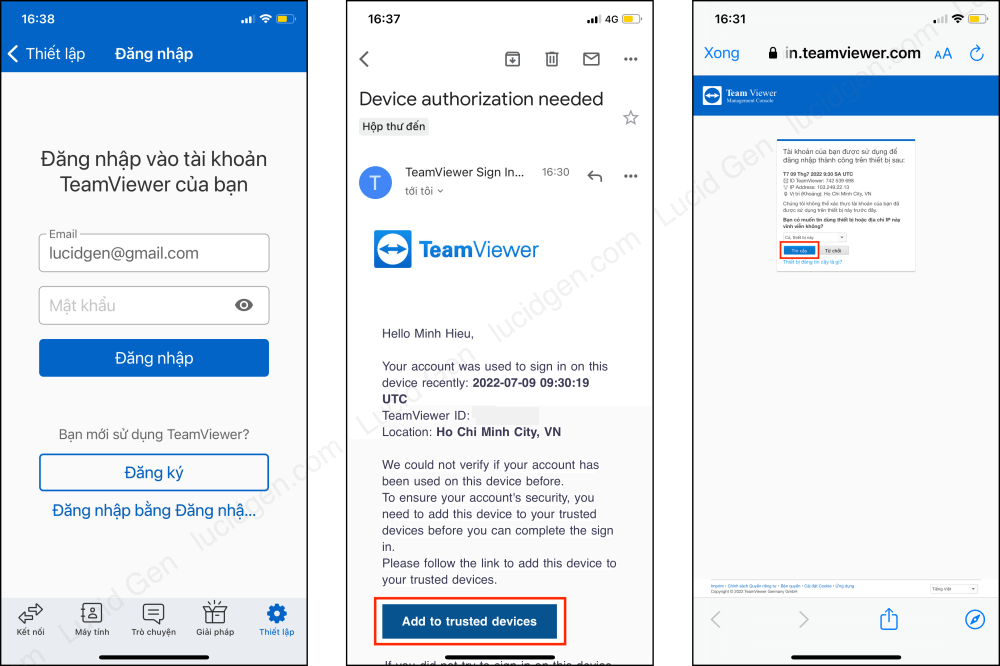
Step 3: Enter the partner ID to connect and control their computer.

Is TeamViewer free?
TeamViewer is free for personal, non-commercial use, such as helping family and friends or connecting to your own devices at home. If you use it for work, for example supporting clients or connecting to your office computer, you need a paid license. Otherwise, TeamViewer may flag your account for suspected commercial use and limit your sessions.
TeamViewer changes its plans and prices quite often, and prices also differ by region, so I no longer list them here. You can check the current plans on TeamViewer’s official pricing page (checked October 2026).
TeamViewer alternatives
On Windows, the most popular TeamViewer replacement software is UltraViewer. Unfortunately, UltraViewer does not support Mac. But there is another app that more and more people are using: AnyDesk for Mac; it is available on Windows, Mac, iOS, and Android. I keep both TeamViewer and AnyDesk installed as a backup.
Conclusion
This article gave you an overview of how to download and install TeamViewer on Mac and on your phone. If you run into any problems while installing TeamViewer on your Mac, feel free to ask in the comments below!


